
You can enroll yourself in a class in the Client App & Branded App. When enrolling in a class, you may have to purchase an applicable plan or pass or add a credit card on file. This requirement is set up by the business and Pike13 will prompt you for the required information when appropriate.
In this article
Enrolling in a class
- Log in to the Client App/Branded App.
- Select Services.
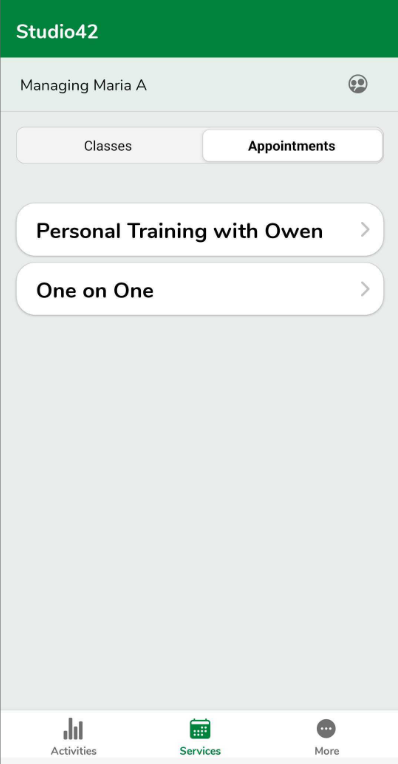
- If you wish to enroll your child or someone you manage, click on Managing at the top.
-
From here, choose the person you wish to enroll.
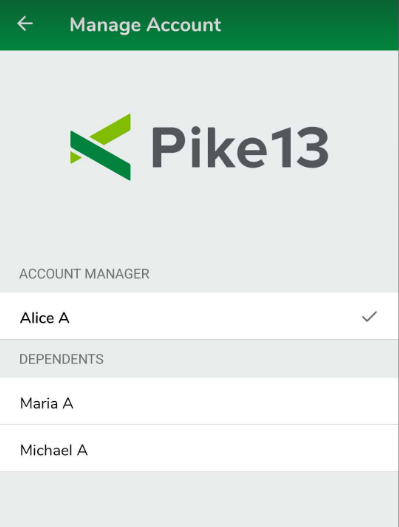
- Click Classes.
- Select the date from the schedule.
-
Choose the time and click Enroll.
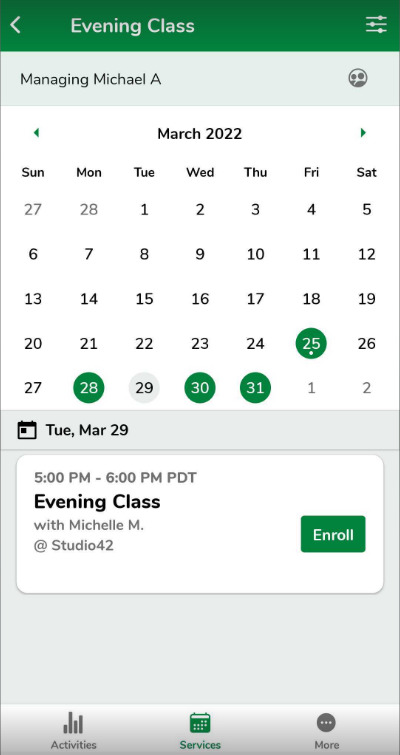
- From here If you meet the enrollment requirements set by the business, you will be asked to confirm your intent to enroll.
- Click Join Class to complete your enrollment.
- Click Cancel if you do not wish to enroll.
- If you do not meet the enrollment requirements, you will be asked to either Buy a pass or plan or Add a Credit Card. You will be prompted to complete this step in order to Complete your enrollment.
Best Practice
Multiple Locations
If the Pike13 business has more than one location, you may wish to select the filter icon in the upper right hand corner. Here you can choose which location(s) you wish to enroll in.
Canceling a class
- Log in to Client App/Branded App.
- Select Activities from the bottom menu to see a list of Upcoming Activities.
- Under Upcoming Activities, select the class that you wish to cancel your registration for.
- Choose Leave or Cancel.
- Confirm you wish to cancel by selecting Leave Class.
Warning
Late Cancel
If you are canceling within the business's late cancellation period, you will see the option to Cancel. Once you cancel, your event will be marked as a Late Cancel.
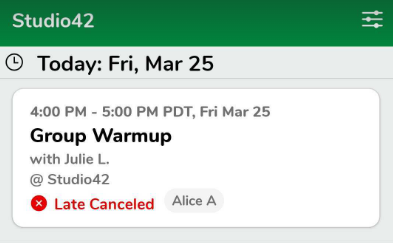
Depending on the business's cancellation policy, you may be charged a fee or have a visit deducted from your current plan or pass.