
Many businesses that use Pike13 allow clients to book an appointment for a private lesson. Depending on the business settings, you maybe required an applicable plan or a credit card on file in order to book. Pike13 will ask you for the required info when appropriate.
In this article
Booking an appointment
- Login to the Client App/Branded App
- Select Services
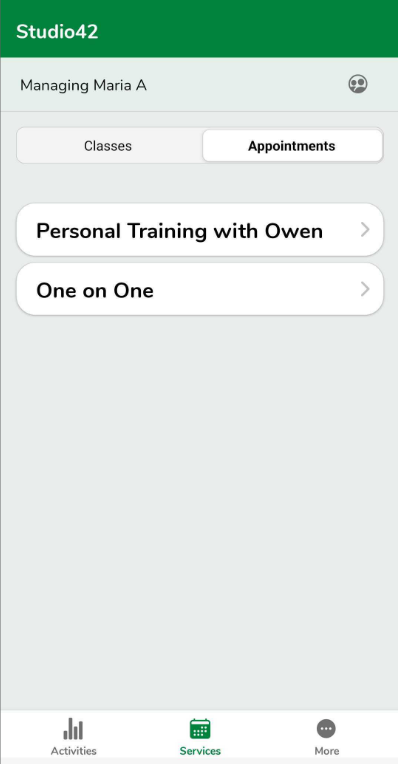
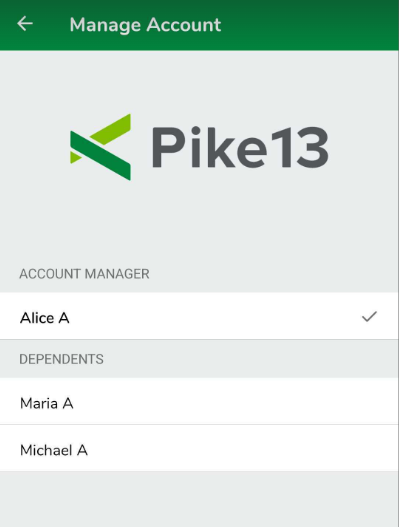
- If you wish to enroll your child or someone you manage, click on Managing at the top.
-
From here choose the person you wish to book.
- Select Appointments
- Click on the type of appointment you wish to book.
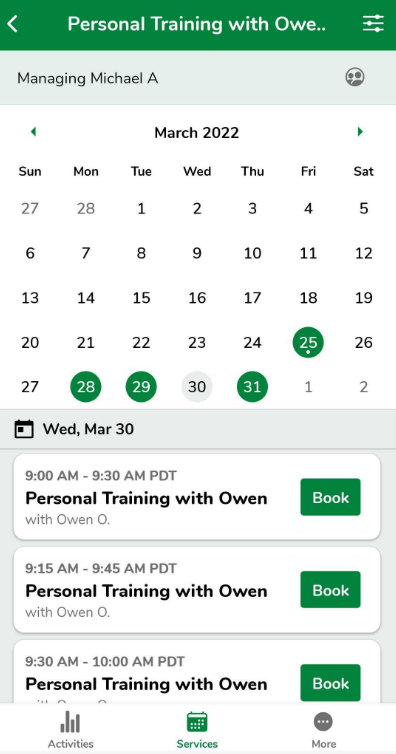
- Choose the day you wish to book from the schedule.
-
Click Book next to the time you wish to attend.
- From click Book Appointment to complete your enrollment or click Cancel if you do not wish to book this time.
- If you do not meet the enrollment requirements, you will be asked to either Buy a Pass or Plan or Add a Credit Card. You will be prompted to complete this step in order to book your appointment.
Canceling an appointment
- Log in to the Client App/Branded App.
- Click on Activities.
- Under Upcoming Activities, scroll to the appointment you wish to cancel your registration for.
- Click Leave or Cancel.
- Confirm you wish to cancel by clicking Cancel Appointment.
Warning
Late Cancel
When you click to Cancel your upcoming appointment and it shows "Late Cancel", you may be charged a fee or have a visit deducted.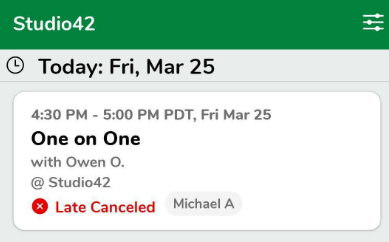
This will depend on this particular business's cancellation policy. If you have questions about their policy, please reach out directly to the business.