
Pike13 allows you to customize exactly what information appears on your event rosters. You can toggle standard profile fields and select up to five custom fields to display.
In This Article
- Pike13 Plans: ✅Premium, ✅Advanced, ✅Essential
- User Roles: ✅Primary Owner, ✅Owner, ✅Manager, ✅Staff, ✅Limited Staff
Finding Roster Settings
- At the top of any Pike13 page, click Settings, then click Advanced Settings.
- Scroll down to Client Management, then click Roster Settings.
Warning
The fields chosen on this page will be visible on all rosters across your business. Any staff member with access to an event roster will see this information.
Standard Client Fields
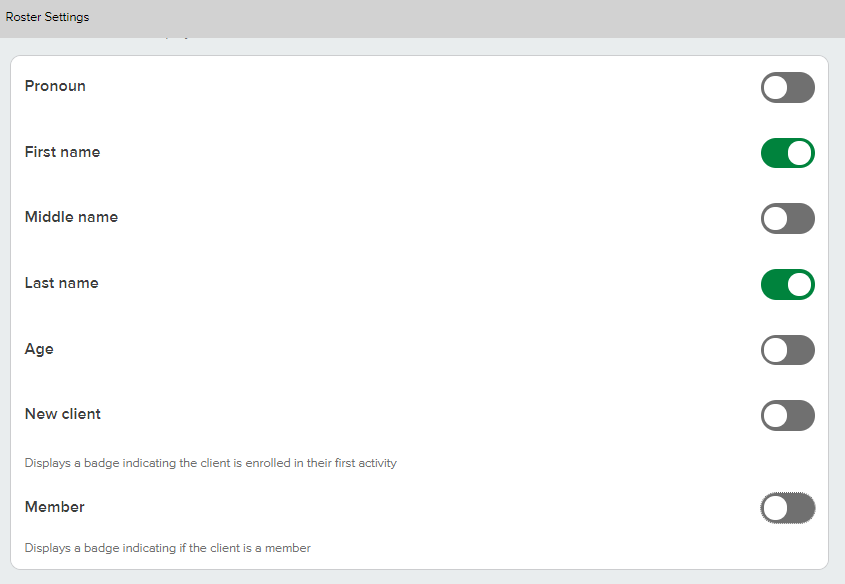
The top section shows predefined fields available for display. First Name and Last Name are on by default.
- Available Fields:
- Pronoun
- First name
- Middle name
- Last name
- Age (displayed in decimal format)
- New client (displayed when it's the client's first visit)
- Member (displayed when the client is also a current active member)
- How to Toggle:
- Switch the toggle to Green to display the field.
- Switch the toggle to Gray to hide it.
Custom Client Fields
Up to 5 custom client fields can be configured to appear on the roster.
- Scroll down to the bottom section.
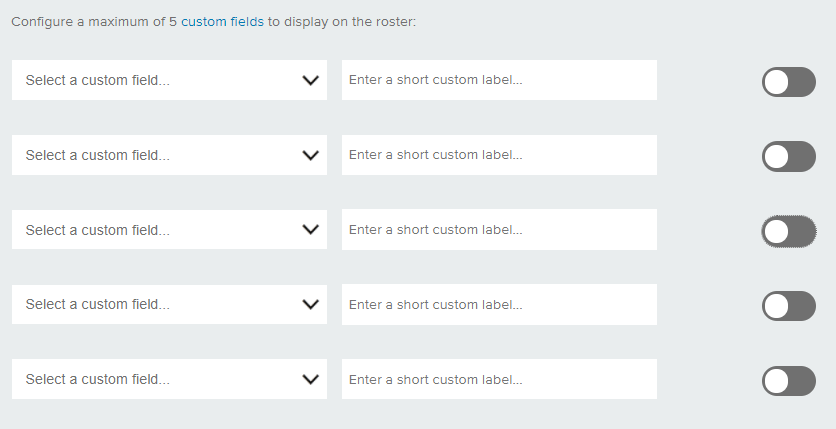
- Click Select a custom field... to choose a field from the dropdown menu.
-
Note
Only Client Profile or Client Signup fields will be available to select. Fields set to Staff or Documents will not appear in the list.
-
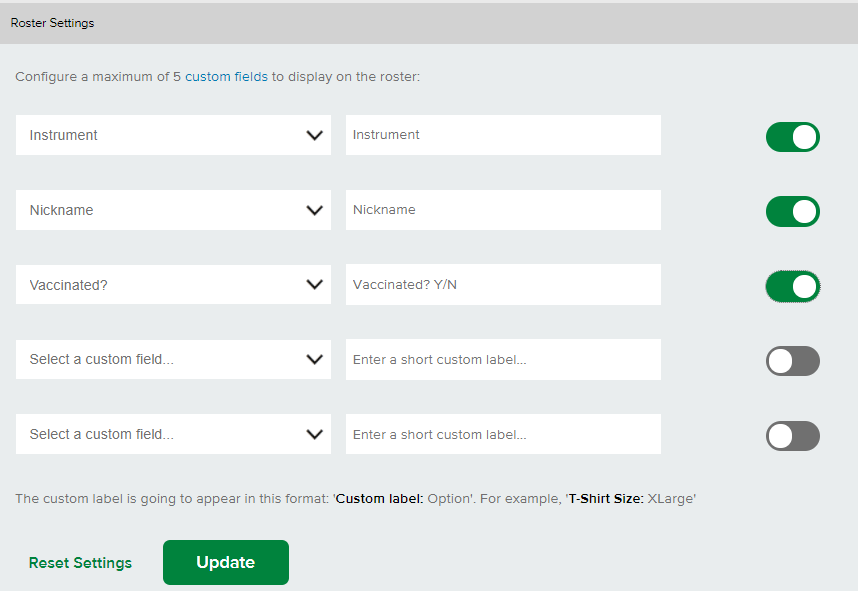
- Enter a custom label in the text box next to the selected field. By default, the name of the field will be set. Use a short label (max 25 characters) to save space on the roster.
- Toggle the specific line to Green to enable it.
- Click Update.
- To return to the original settings click “Reset Settings”. This will return the roster settings to the last saved configuration.
Troubleshooting
Settings Won't Save?
If nothing happens after clicking Update, check for these common errors:
-
Duplicates: A custom field is selected more than once.
-
Empty Selection: A toggle is turned ON (Green), but no field is selected in the dropdown menu.
