
Managing your profile is a quick and easy way to keep your information up-to-date and accurate. This article will guide you through the process of editing your personal details, and, for parents, managing your dependents' profiles.
In this article
Editing Your Profile
- Log in to your Pike13 account.
- In your dashboard, select Edit Profile located under your profile picture on the right side.
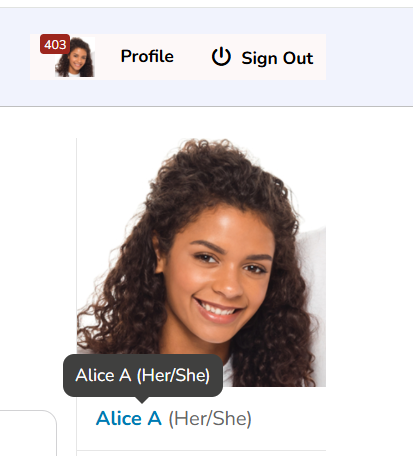
- Update all your profile information as needed.
- Click Save.
Adding a Dependent
-
Go to your Client Profile in Pike13.
-
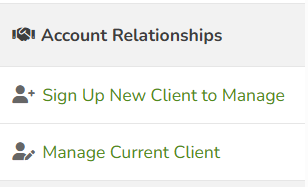
On the right hand side scroll down to Account Relationships.
-
From here if your dependent already has a profile in Pike13, you can connect to your account by selecting Manage Current Client or you can create a profile for them by selecting Sign up New Client to Manage.
Removing a Dependent
-
Go to your Client Profile in Pike13.
-
Select Edit Profile from the right hand menu.
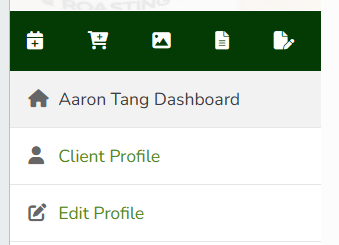
- Scroll down to Manage Current Client and click on the x next to person you wish to remove.
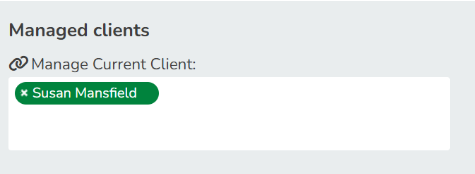
- Select Save.
Warning
Removing a Dependent
Removing a dependent does not delete their profile. They will still have an active profile with this business and recurring plans will remain on autopayment.