
Rooms allow assigning specific physical spaces (e.g., "Yoga Studio A" or "Massage Room 1") to your services. This helps organize your facility and ensures clients know exactly where their appointment is taking place.
In This Article
Who can use this feature?
- Pike13 Plans: ✅Premium, ✅Advanced, ✅Essential
- User Roles: ✅Primary Owner, ✅Owner, ✅Manager, ❌Staff, ❌Limited Staff
Note
If you do not see Rooms in your Settings menu, please contact help@pike13.com to have this feature enabled for your business.
Adding Rooms
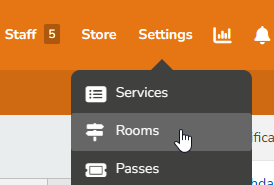
- At the top of any Pike13 page, click on Settings, then click Rooms.
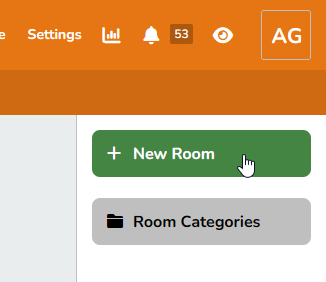
- Click + New Room on the right side.
-
Fill in the following fields:
- Room Name: Give the space a clear label (Cycle Studio, Yoga Room, Band Practice, etc.)
- Room Category: Applicable if you have many different types of rooms (cycling, racquetball, tennis courts, etc.)
- Location: Applicable if the business has many locations (Main Building, Annex, Downtown, Uptown, etc.)
- Room Description: Add a description about the purpose, capacity or equipment available in the room
- Applicable Services: Select exactly which services can be offered in this room. This filters the list during scheduling to prevent errors (e.g., preventing a Yoga class from being booked in the Spin room).
- Click Save.
To edit an existing room, click on the room name, then click the relevant Edit button to make changes.
To delete an existing room, click the room name, then click Delete Room.
How Rooms Appear
Once set up, rooms become a core part of the scheduling workflow.
- For Staff: The assigned room appears on the service event details. This helps staff organize equipment and physical flow within the business.
-
For Clients: The room name is displayed in Confirmation Emails, Reminder Emails, and on their Client Profile schedule. This eliminates confusion about where to go upon arrival.
Scheduling Conflicts & Overrides
When scheduling an appointment or class, Pike13 helps you choose an available space.
-
Conflict Detection: When selecting a room from the dropdown menu, any room that is already in use at that time will appear in Bold.
-
Applicability: The list prioritizes rooms you marked as "Applicable" for that service.
-
Manual Overrides:
-
Staff can still select a room that is currently in use (double-booking).
-
Staff can select a room that is not technically "applicable" to the service.
-
Result: The system provides the warning (bold text) but does not strictly block the action, allowing for flexibility in unusual situations.
-