
Zapier is an online automation tool that connects your favorite apps, such as Gmail, Slack, MailChimp & Quickbooks Online
In this article
Who can use this feature?
- Pike13 Plans: ✅Premium, ✅Advanced, ❌Essential
- User Roles: ✅Primary Owner, ✅Owner, ✅Manager, ❌Staff, ❌Limited Staff
Create a new Zap
- Log in to your Zapier account and select + Create and then Zaps from the left-hand navigation menu
- Find the tool you want to send data from.
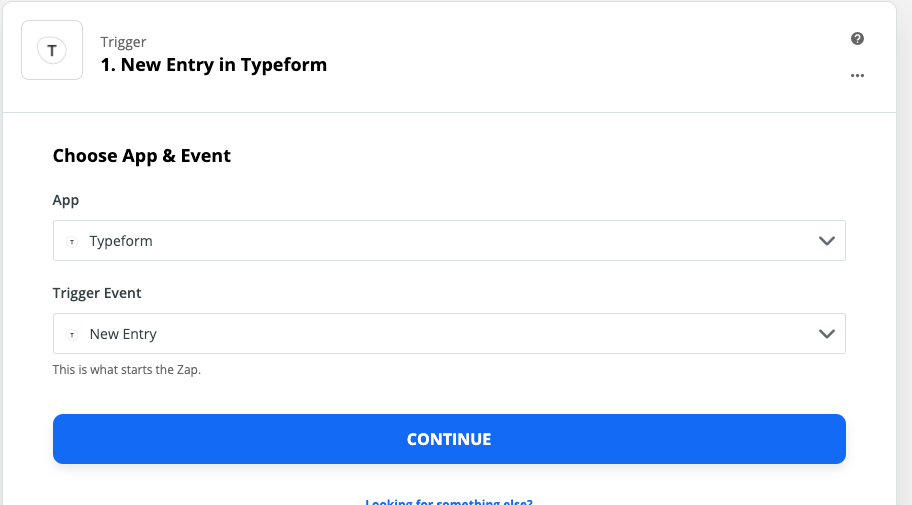
- Choose the specific action that triggers the Zap. For example, we will use TypeForm and the trigger is when a New Entry is submitted.
- Sign in to your chosen app to give Zapier permission to access the data.
- Zapier will pull in a "sample" of recent data. Review this to ensure the connection is working.
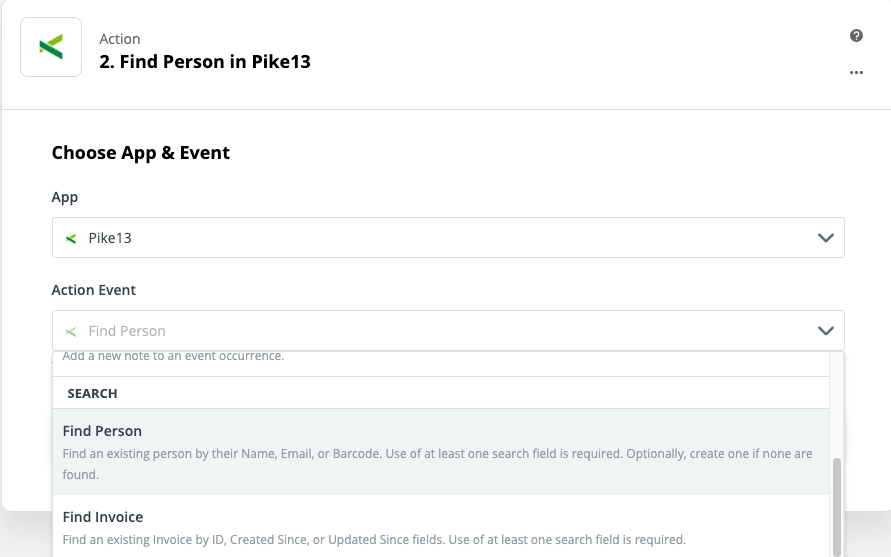
5. Add an Action Step by selecting an app and what should happen in this app after the trigger. In this case, we will select Pike13 and the action is Find Person.
6. Match the information from your Trigger (like Name and Email from Typeform) to the corresponding fields in Pike13.
7. Click Test Step. Check your Pike13 client list to verify that a test profile was found or created correctly
8.Once you are satisfied with the test, click Publish.
TIP
We recommend using this Action instead of Create Person to avoid creating duplicate client profiles for users that might already exist in your Pike13 Client list. Using Find Person, you'll first search to see if the person exists then only create them if don't.
Caution
The available Triggers and Data are unique for each tool so instructions may slightly differ. Contact Zapier Help or your software provider for further assistance with Triggering from other tools.