
Depending on your cancellation policy, staff will have the option to be able to deduct a visit and/or charge a cancellation fee when a client is marked as a late cancel.
In this article
- Who Can use this feature?
- Charging a Cancellation Fee
- Deducting a Visit
Who can use this feature?
- Pike13 Plans: ✅Premium, ✅Advanced, ✅Essential
- User Roles: ✅Primary Owner, ✅Owner, ✅Manager, ✅Staff, ❌Limited Staff
Charging a Cancellation Fee
If your appointment or class service is setup to allow staff to charge a cancellation fee, they will see this option when a client is marked as a late cancel. Charging a cancellation fee does not happen automatically. A staff member will need to manually process the late cancellation fee.
- Select Schedule
- Navigate to the Class or Appointment roster.
- Click on the gear icon next to the client and mark them as late canceled.
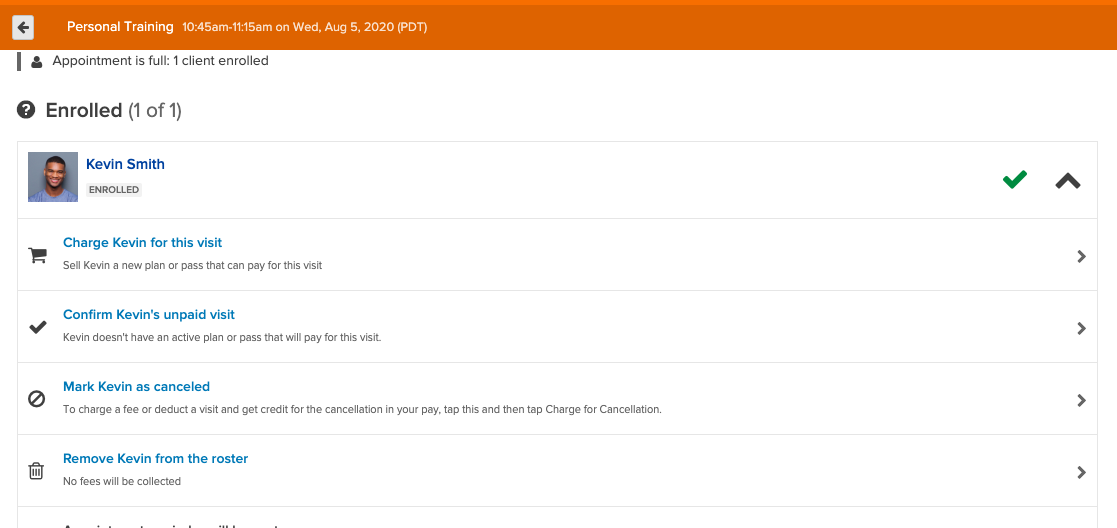
- Once the client has been marked canceled, select Charge for Cancellation.
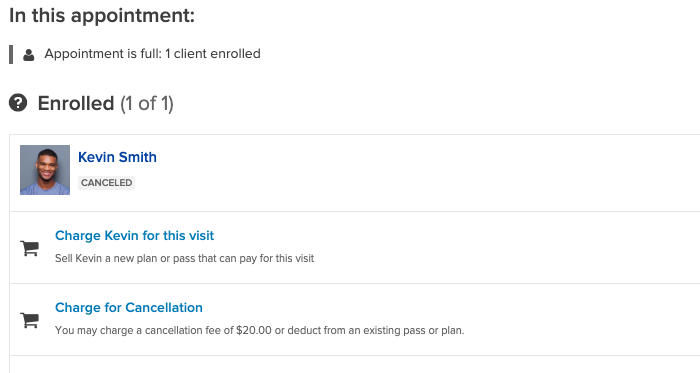
- From the shopping cart, process the cancellation fee.
- This will take you to the Shopping Cart. Process the payment for the fee to finalize the cancellation.
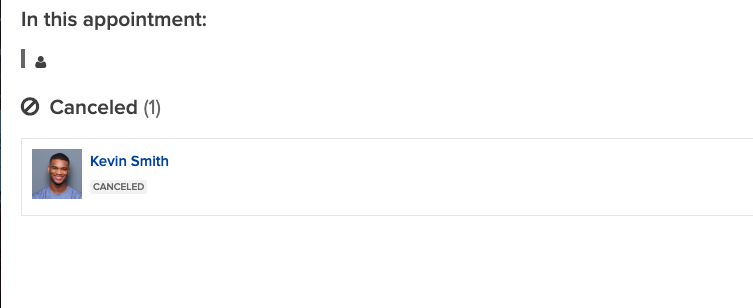
- Once the fee has been paid, the client will be marked as Canceled in the roster.
Deducting a Visit
When a client late cancels, a visit will be automatically deducted if the cancellation policy only allows a visit to be deducted and the client has a pass or plan to pay for this visit. If your cancellation policy is set to deduct a visit or charge a fee, a staff member will need to manually select to deduct a visit.
- Select Schedule
- Navigate to the Class or Appointment roster.
- Click on the gear icon next to the client and mark them as late canceled.
- Once the client has marked a Canceled, select Charge for Cancellation.
- Choose to deduct a visit from the client's active pass or plan.
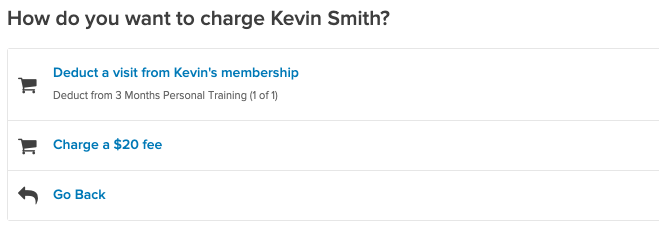
- Once the visit has been deducted, the client will be marked as Canceled in the roster.
Warning
Client's visit is unpaid.
If the client is Unpaid (they have not purchased a plan/pass yet to cover this visit), the "Deduct a Visit" option will be unavailable. You must first sell the client a pass to cover this visit then deduct the visit. .
Note
Setting up a cancellation policy
For questions on how to set up your cancellation policy to allow these options, please see Cancellation Policy for Appointments/Classes.