
You can add unique content to your Pike13 website by creating a Custom Page. This is useful for displaying a "Welcome" message, explaining your enrollment policies, or sharing photos of your facility.
When adding a new page to your client facing Pike13 Website, you will be able to show the following options.
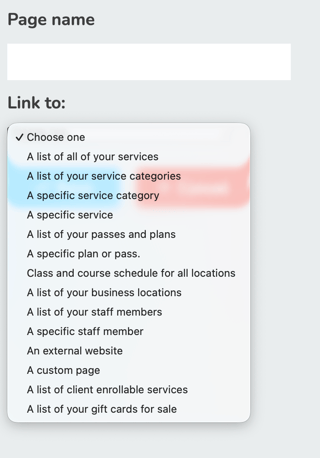
To Create a Custom Page
- Click on Settings > Pike13 Website.
- Select the Navigation tab at the top of the page.
- Click + Create a New Page.
-
Page Name: Enter the text that will appear in your site's menu (e.g., "About Us" or "New Client Info").
-
Link to: Select an option from the dropdown menu.
Editing Page Content
Once selected, a content editor will appear. You have two options for adding content:
-
Visual Editor: Use the standard toolbar to type text, insert images, and create links just like you would in a document.
-
HTML Editor: If you are comfortable with code, click the Source Code icon (Gear icon) to write your own HTML for advanced formatting.
When you are finished, click Save to publish the page to your navigation menu.