
You can link your business website and your Pike13 website to each other.
In this article
Add a link on your business website to a page of your Pike13 website
- At the top of any Pike13 page, click Settings
- Select Pike13 Website.
- Scroll down to the bottom of the page to the preview of how your site will appear for your clients.
- From here, navigate to the page you wish to have clients directed to from your marketing site.
- Click the Share button in the right hand corner.
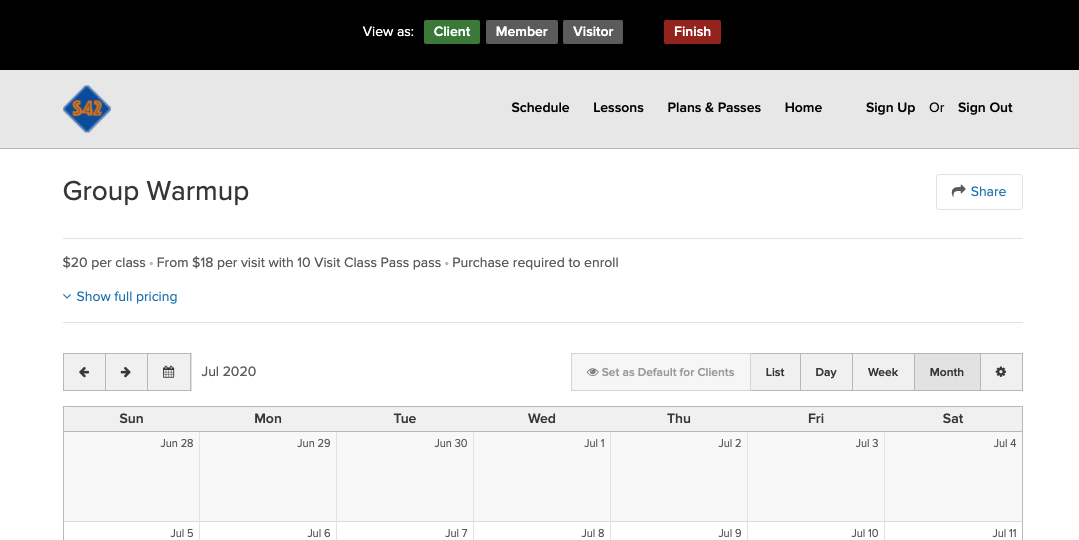
- Select if you wish to add a link or button code.

- Copy the HTML code that you'll use on your website, and then paste the code into your website.
Add a link to your business website in the top navigation of your Pike13 website
- At the top of any Pike13 page, click Settings, and then select Pike13 Website.
- Select Navigation at the top, and then click + Create a New Page.
- For Page name, enter the word that you want to appear as the link, like "Home."
- Under Link to:, choose An external website
- Under Web address, enter the URL of your business website, and then click Save.
Add a link to your business website in the footer of your Pike13 website
- At the top of any Pike13 page, click Settings, and then select Advanced Settings.
- In the right menu, under Your Pike13 Business click Contact.
- Under Business website, enter the address or URL for your business website, and then click Update.
The display text for this link will read "Visit Our Website" in the footer. Business contact email and phone number information that you enter here also appear in the footer of your Pike13 business website.