The Meta pixel is a website code snippet used to track conversions, optimize advertisements, and build targeted remarketing audiences based on user actions.
In this article
Who can use this feature?
- Pike13 Plans: ✅Premium, ✅Advanced, ❌Essential
- User Roles: ✅Primary Owner, ✅Owner, ✅Manager, ❌Staff, ❌Limited Staff
Create a Meta Pixel
- Go to your Meta Events Manager.
- Click on Connect Data Sources
- Select Web.
- Click Connect
- Enter a name for your pixel, then click Create Pixel.
- Copy your Pixel ID
Install Meta Pixel in your Pike13 site
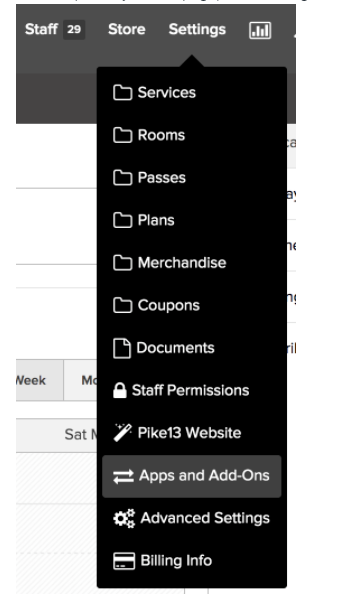
- At the top of any Pike13 page, click Settings. In the drop-down, choose Apps & Add-ons.
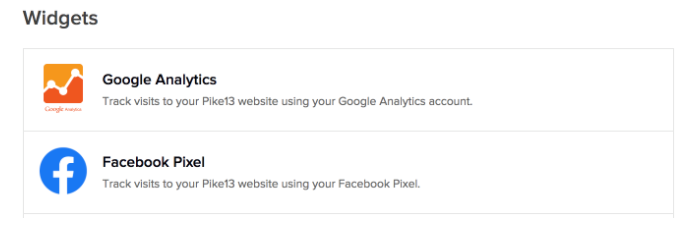
- Under the Widgets section, select Facebook Pixel. If you don't see it, contact your account manager.
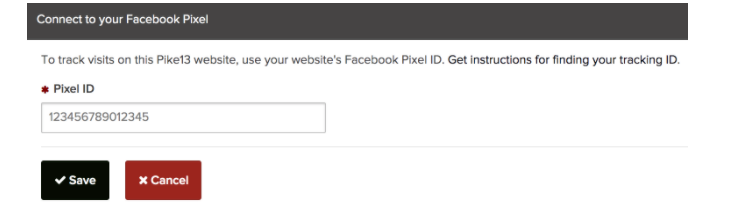
- Enter your Meta Pixel ID in the text box and click Save.
- Return to your Meta Event Manager to test the connection.
Events We Track
Pike13 automatically installs the pixel on all Client Mode page views. To ensure your data is clean, we do not track activity when a staff member is logged in or using the "See what clients see" feature.
Here is the list of events you can track
- Lead - a user creates a new client profile
- Purchase - a client makes a new purchase
- Schedule - a client books an appointment or enrolls in a class or course
Tip
To test your pixel, log out of your staff account and use a test account that is set up as a Client Only.
NOTE
Track other events with Facebook event set up tool
Facebook also offers to set up more events using the event set up tool. You can find more information from this article.
Domain Verification
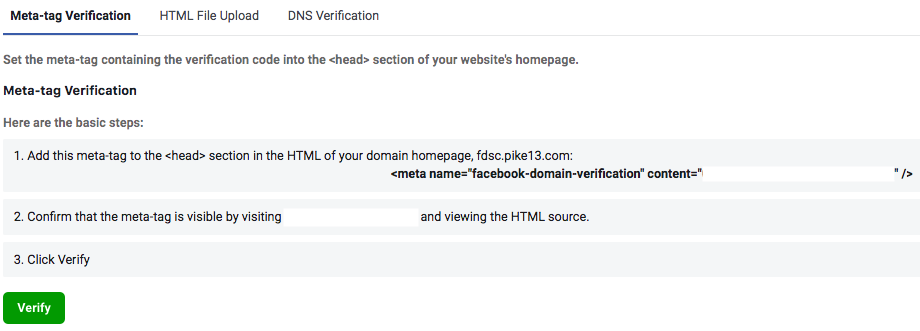
We do support verifying your subdomain. If you want to set this up, Please contact help@pike13.com and include your Meta tag if you want to set it up. Here is a link to Meta's article on how to set up Domain Verification.