
There are a couple of possibilities why a payroll may not appear for a staff member. Pay rates may not be assigned to the service or staff member, attendance may not be confirmed or clients were not checked in for a class, appointment or course.
In This Article
- Who can use this feature?
- Verify Assigned Pay Rates
- Confirm Attendance
- Reset Roster Attendance
- Already Included in Payroll Report
Who can use this feature?
- Pike13 Plans: ✅Premium, ✅Advanced, ❌Essential
- User Roles: ✅Primary Owner, ✅Owner, ❌Manager, ❌Staff, ❌Limited Staff
Verify Assigned Pay Rates
Verify the staff member has been assigned a pay rate for that service
- At the top of any Pike13 page, Select Staff.
- Select the staff member who is missing a pay item.
- Click on Pay Rates. Here you will see the services the staff member has been assigned to, the ones they have not been assigned to and the services that do not have pay rates.
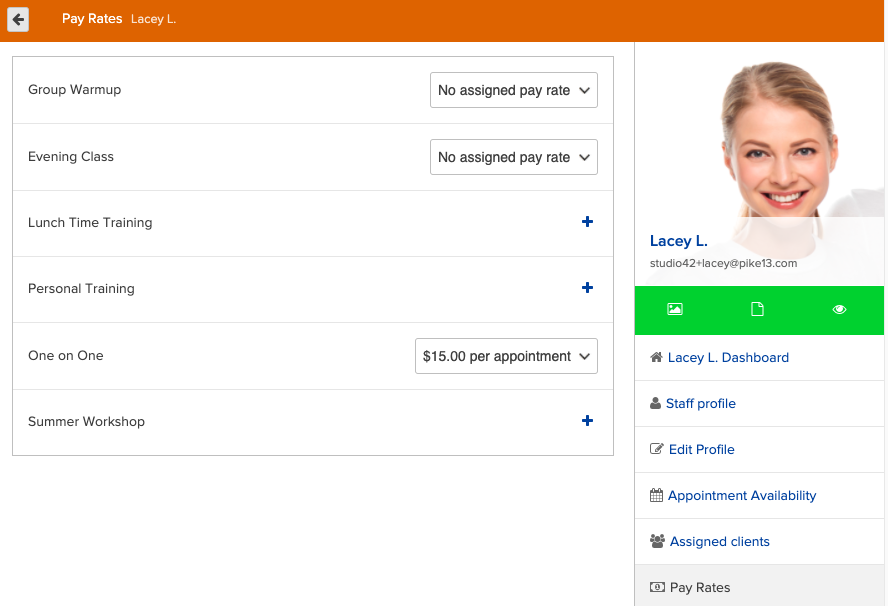
- To add a pay rate for the staff member, you can select
- + to add a pay rate to the service
- No assigned to pay rate to add the staff member to a pay rate
- After adding a pay rate for the staff member, go back to Staff.
- Select Run Payroll Now.
- If you wish to update the pay items for a previously run pay period, choose the pay period and select Delete.
- Click on Recalculate Pending Pay to update pending pay items.
- Run payroll.
Confirm Attendance
Check if attendance for the instructor's assigned schedule has been confirmed
- At the top of any Pike13 page, Select Schedule.
- Navigate to the date(s) for the event you need to confirm.
- If the event is grayed out, attendance has been confirmed. Select the event to check if the roster has any unresolved items.
- Confirm attendance for the events that were not previously completed.
- Return to Staff > Run Payroll Now.
- Select Recalculate Pending Pay.
- Run payroll.
Reset Roster Attendance
If the pay item is still not appearing after assigning a pay rate and confirming attendance, you may need to reset attendance.
- Click Schedule.
- Go to the event that is missing a pay item.
- Click on the gear icon next to a client's name in the roster.
- Choose to reset attendance.
- Check the client back in to the event.
- Repeat steps 3-5 for every client on the roster.
- Once all clients have been checked back in, go back to Staff and select Run Payroll Now.
- If the missing pay item should be included in a past pay period, click on the appropriate dates and select Delete.
- Select Recalculate Pending Pay.
- Run Payroll.
Already Included in Payroll Report
- Go to the top of the page, select the Reporting icon.
- From here choose Financial.
- Click on Payroll and choose Details.
- Add the following filters for Service Date and Staff
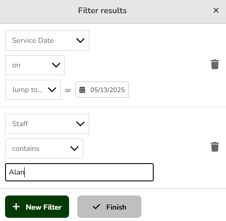
- Click Finish.
- The Report will show if this event has already been included in a payroll report.