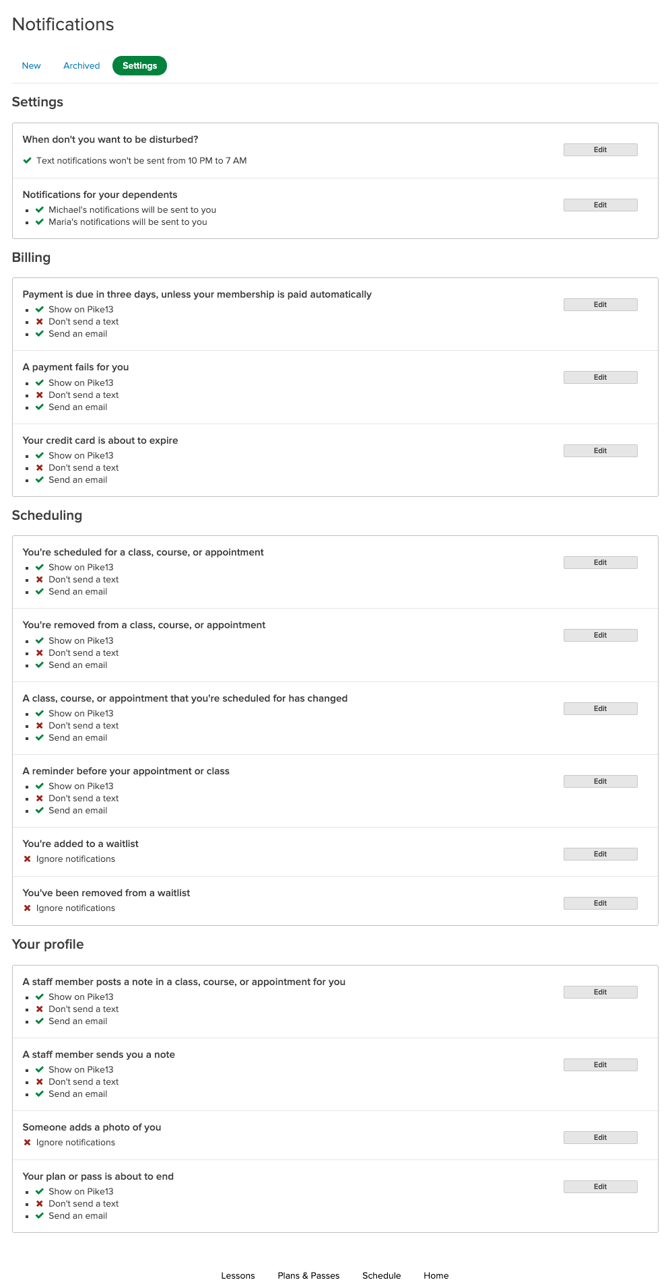
Manage your Pike13 account notifications and staff notes by choosing which updates you receive via email or text..
In this article
Control when and how you are notified
- Sign in to the Pike13 website.
- Click My Profile, select Notifications, and then choose Settings.
- To receive no notifications during certain hours (like when you sleep), under When don't you want to be disturbed? click Edit, and then select the checkbox and choose the times when you don't want to receive notifications.
- To receive any of the available notifications, click the Edit button so that notification is checked, check the boxes on the right to be notified on the Pike13 website, by text, or by email, and then select Save.
Note
Text Notification
If you choose to receive text notifications, you'll be prompted to enter the phone number at which you want to receive the texts.
Review your notifications
You can view a history of all alerts sent to you directly on the website.
-
Go to My Profile > Notifications.
-
Select the New tab to see unread alerts.
-
To Clear: Click the Ignore (or Dismiss) button to remove an alert.
-
To View History: Click the Archived tab to see previously dismissed notifications.