
This page discusses how to download the data or visualization from a Look or from the Explore page in a variety of formats. Downloading dashboards is discussed separately on the Viewing Dashboards in Looker page.
In this article
Who can use this feature?
- Pike13 Plans: ✅Premium, ❌Advanced, ❌Essential
- User Roles: ✅Primary Owner, ✅Owner, ❌Manager, ❌Staff, ❌Limited Staff
Download Report
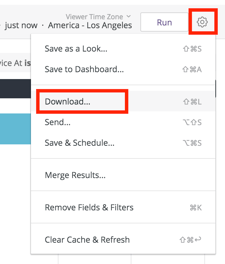
To download data from a Look or an Explore page, click the gear drop-down in the upper left and select Download:
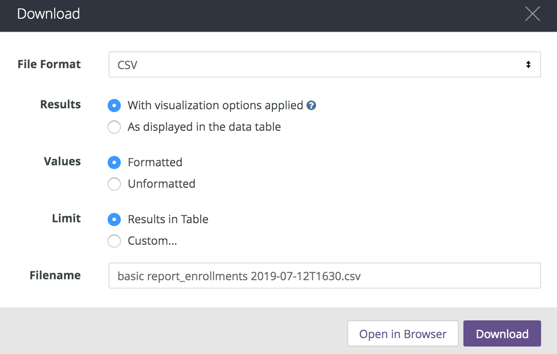
Then you will see options to config your download.
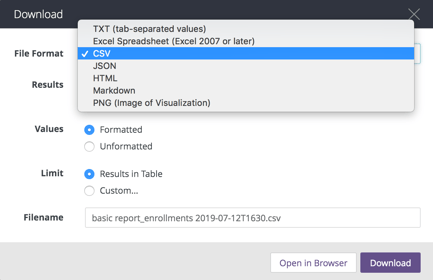
File Formats
Data can be downloaded in the following formats:
Results
In the Results section, choose whether you want visualization settings applied to your data download:
If you choose With visualization options applied, Looker applies some of the visualization settings to your download, causing your download to appear similar to a table chart. Any of the following settings in the Plot, Series, and Formatting menus that are configured for the visualization will be applied to the data download:
- Show Row Numbers
- Hide Totals
- Hide Row Totals
- Limit Displayed Rows to a maximum of 500 rows shown or hidden.
- Show Full Field Name
- Custom labels for each column (note that JSON files will always use raw field names, not the field label)
- Conditional Formatting for downloads of table chart visualizations in Excel format
If you choose As displayed in the data table, visualization options will not be applied, and the download will appear like the data table in the Data section of the Look or Explore.
Values
In the Values section, choose how you want the downloaded query results to appear:
If you choose Unformatted, Looker does not apply any special formatting of your query results, such as rounding long numbers or adding special characters your Looker developers may have put in place. This is often preferred when data is being fed into another tool for processing.
If you choose Formatted the data will appear more similar to the Explore experience in Looker, although some features (such as linking) aren’t supported by all file types.
Limit
You can choose how much data you want to download as follows:
- Results in table: Number of rows specified by the row limit of your Look.
- Custom: A custom number of rows, limited to 5,000 rows.
Download or View
Once you’ve selected your options, you can click the Download button to download a file to your computer or click Open in Browser to view the file in the browser.