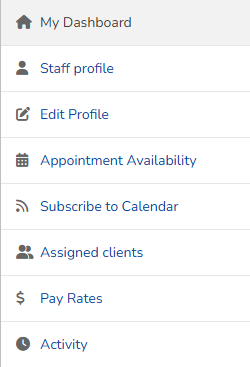
When you log in to Pike13 and view your own Staff Profile, the options available in the side menu (or action menu) change depending on your role permissions. This dashboard is your personal hub for managing your schedule, availability, and history.
In This Article
- Who can use this feature?
- Accessing the Dashboard
- Limited Staff Members
- Staff Members
- Managers, Owners and Primary Owners
Who can use this feature?
- Pike13 Plans: ✅Premium, ✅Advanced, ✅Essential
- User Roles: ✅Primary Owner, ✅Owner, ✅Manager, ✅Staff, ✅Limited Staff
Accessing the Dashboard
-
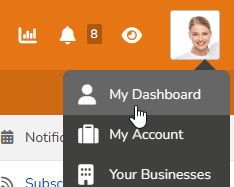
Click your profile picture at the top of the page
-
Then click My Dashboard.
Limited Staff Members
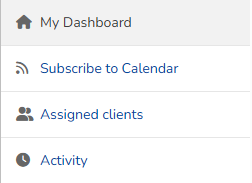
Limited Staff Members have the most restricted view. They can only see information relevant to their specific assigned duties.
-
Subscribe to Calendar: Sync scheduled appointments or assigned class schedules to a personal calendar (Google/iCal).
-
Assigned Clients: View profiles of clients specifically assigned to them.
-
Activity: Review a history of their own actions within the system.
Staff Members
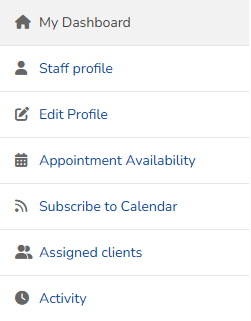
Staff Members have more control over their presentation and scheduling. They see all options above, plus:
- Staff profile: Their own staff profile summary including contact information and custom fields.
-
Edit Profile: Update personal details, bio, and profile photo.
- Appointment Availability: Set or modify the hours they are available to be booked for private appointments (e.g., "Available Mondays 9am-5pm").
Managers, Owners and Primary Owners
Managers, Owners and Primary Owners have full visibility into the administrative side of their profile. They see all options above, plus:
- Pay Rates: Create, manage and assign pay rates for services and other staff.
- Only available with Advanced and Premium Pike13 plans.