
In This Article
- Who can use this feature?
- Issue Make-Up Passes
- Revoke Make-Up Passes
- Viewing Make-Up Details
- Notifications
- Further Reading
Who can use this feature?
- Pike13 Plans: ✅Premium, ✅Advanced, ✅Essential
- User Roles: ✅Primary Owner, ✅Owner, ✅Manager, ✅Staff, ❌Limited Staff
Issue Make-Up Passes
-
Click Schedule and open the Roster for an event.
-
Click the Gear Icon (or status button) next to the client's name.
-
Mark the client as Canceled or No Show.
-
Once the status changes, a new option will appear: Issue a make-up.
-
Select a Reason from the dropdown list.
-
Enter any additional details in the notes (e.g., "Called in with flu").
-
Click Save.
-
Result: The client now has a single-visit pass on their account valid for the same service type.
-
Revoke Make-Up Passes
If a pass was issued in error, you can remove it, provided the client has not used it yet.
Option A: From The Roster
-
Go to the Roster where the make-up was originally issued.
-
Click the Gear Icon next to the client's name.
-
Select Revoke make-up.
Option B: From The Client Profile
-
Go to the Client’s Profile.
-
Select Plans & Passes.
-
Click on the specific Make-up Pass in the list.
-
In the right-hand menu, click Cancel.
⚠️ Warning: Used Passes
A make-up pass cannot be revoked if the pass was already used to pay for a visit.
Viewing Make-Up Details
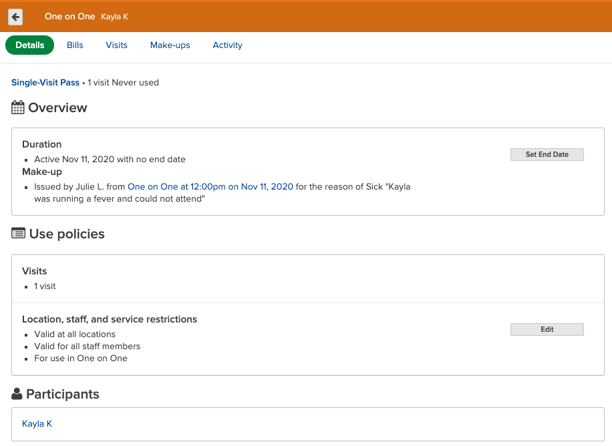
To see who issued a pass and why:
-
Go to the Client’s Profile > Plans & Passes.
-
Click on the Make-up Pass.
-
Look under the Overview section (specifically the "Make-up" label).
-
It will display the staff member's name and the reason note they entered.
Notifications
Owners and Managers can choose to be notified whenever a staff member grants an exception.
-
Click the Bell Icon (Notifications) in the top right.
-
Select Settings.
-
Scroll down to the Client Management section.
-
Find A staff member issues a make-up.
-
Click Edit to enable Email or Dashboard alerts.
-
Click Save.