
If the business serving you has the Pike13 branded app, you can manage your schedule, find upcoming activities, purchase plans and passes, and manage your payment methods.
In this article
Creating an account
Before you can sign in to the app, you will need to create an account.
- In your mobile browser, go to the business' Pike13 Website.
- In the top right corner of the Pike13 website, select Sign Up.
- Enter your email address then select Next.
- Enter the required information including creating a password and select Sign Up.
Installing and signing in to the branded app
- Go to Google Play or the Apple Store, search for the business, and install the branded app
- After the app is installed, sign in with your Pike13 account email address and password
Managing a profile in the branded app
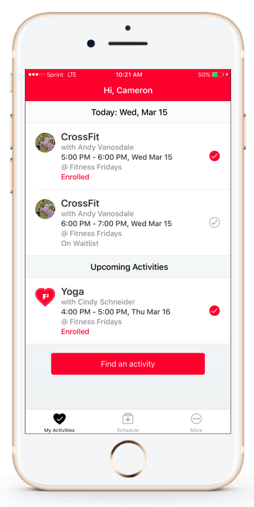
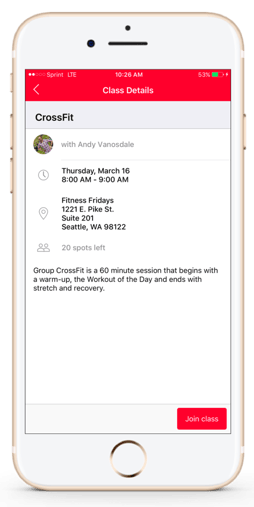
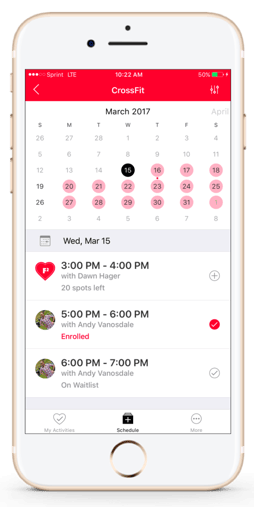
Use the app to view your upcoming activities, as well as find additional classes and appointments offered by the business. If you are unable to attend an upcoming activity, cancel your enrollment and reschedule. Click an event for more details about the service and instructor.
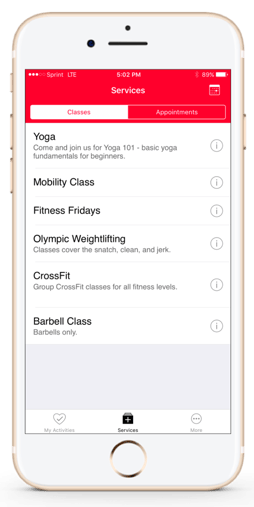
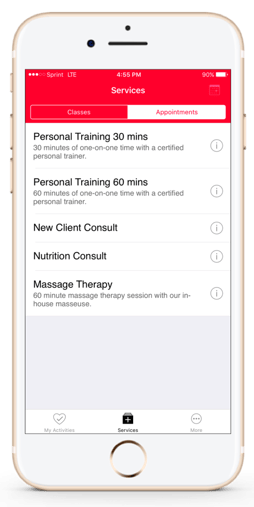
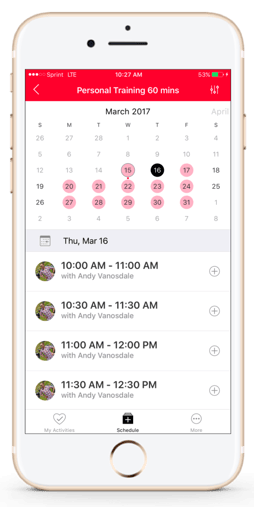
View a list of Classes and Appointments offered by the business. Click Schedule - All Classes to see all upcoming classes or click a class service to see times only for the selected service. Click Appointments to see private services and to schedule a time.
When viewing a specific class or appointment service, the calendar will highlight the days the service is offered (colored circles) and show you the days you are already enrolled (colored dots). This simplifies the enrollment process and makes it easy to find a time that fits with your upcoming activities.
Configuring More Settings
Click More to access Account Information, Business Information, and App Settings & Information.
Account Information
View and purchase plans and passes, including the number of visits remaining on your active passes. You can also see and manage your payment methods.
Business Information
View the contact information for the business.
App Settings & Information
Manage your notification preferences and let us know if you run into any issues using the Pike13 Branded App. Please note, messages through the app DO NOT go to the business.
Note
QR Code
The check-in QR code is not currently in our Client App. It can be accessed using a mobile browser by signing in and selecting Your Stuff next to their picture and then the Scan In option to get to the code.
Warning
Coupons & Courses Are Not Supported
The Branded App and Client App do not support enrolling in courses or applying coupons. In order to enroll in a course or use a coupon, you will need to log in via a mobile browser or desktop.