
The Pike13 Client Kiosk app transforms your tablet into a self-service station for your front desk.
Configuring the Client Kiosk App
- Download the Client Kiosk App from either Google or Apple.
- Sign in to the app using your Pike13 email and password.
- When prompted, ensure you allow camera access (required for scanning QR codes).
- Select your business.
- Choose whether to allow new clients to sign up, current clients to check in, or allow only clients to check in to classes they are previously enrolled in or allow both new clients to sign up and allow clients to check in to scheduled services or only services they are already enrolled in.
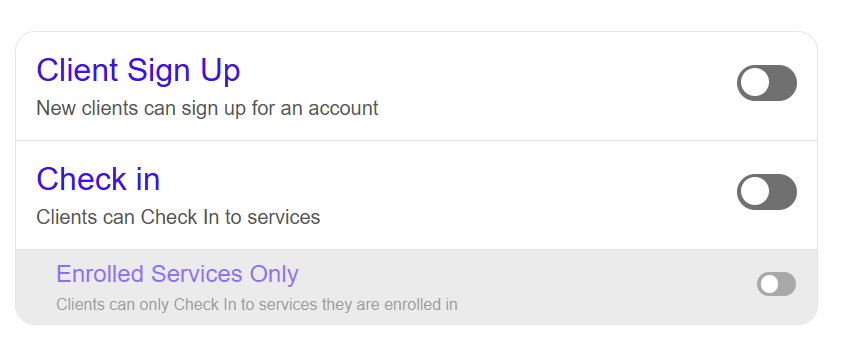
- If you have multiple locations in your Pike13 site, you will be prompted to select a location.
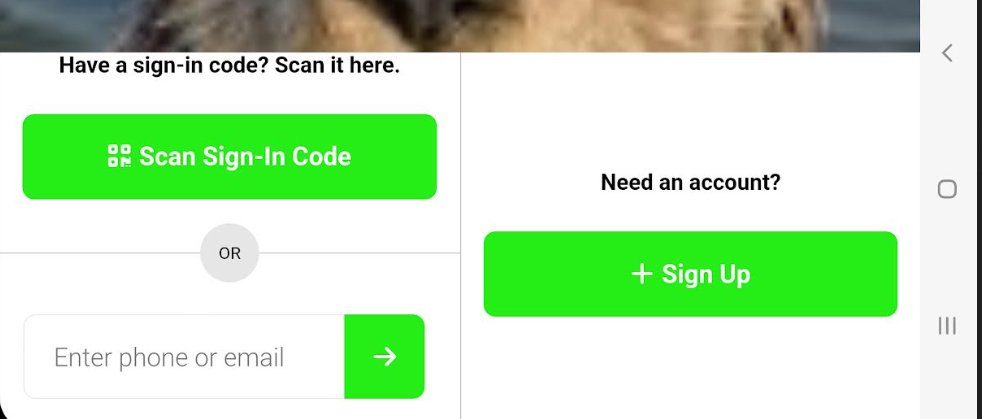
- The kiosk is now setup for clients to only sign up, only check in to new classes or only check in to enrolled classes or both sign
Caution
App Requirements
Due to the many versions of Android and Apple devices available, your experience may vary depending on your device model, operating system version, display size, and device settings. Pike13 apps may not be compatible with all devices and operating systems.
Warning
Kiosk acts as a staff member
The kiosk has permission levels of a staff member. When signing in via the kiosk, client's will be able to enroll themselves in a class without having an applicable pass or plan. However, your staff will see in the roster that they are unpaid and can check them out/sell them a drop in or pass at that time.