
Staff App
Selling Merchandise from the Store
- Click on the 3 bars
 in the upper left hand corner and select Store.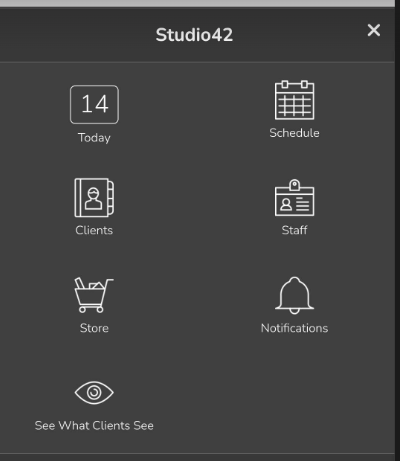
- On the Choose a product page, select Merchandise.
- Tap the item that you want to sell.
- Choose options and add-ons for your customer, and click Add to Cart.
- On the Shopping Cart page, do any of the following:
- Modify the item to make any necessary changes, such as applying a discount, changing previously-selected options or add-ons or adjusting the price.
- Select + Add More Items, and then repeat steps 2-3.
- Enter a coupon code.
- Link to a client profile by clicking Choose Client.
- Send a New Purchase Request.
- Tap Secure Checkout to complete the sale.
- Ensure the Location is correct.
- Choose whether or not to send an email receipt to the client. The default is Yes. Ensure the email address is correct.
- Tap Choose a payment method, and then choose a payment option.
- To make a full payment, check that the full payment amount is correct, specify who should receive a sales commission, the location of sale, and whether to email the client a receipt, and then click Finish.
- To make a partial payment, enter an amount that is less than the total, specify who should receive a sales commission, the location of sale, and whether to email the client a receipt, and then click Make Partial Payment.
- To split a payment between payment methods, enter an amount that is less than the total, specify who should receive a sales commission, the location of sale, and whether to email the client a receipt. Click + Add another payment, choose the second payment method, and then click Finish.
Selling Merchandise from a Client Profile
- Tap on the 3 bars in the upper left hand corner, then tap Clients.
- On the Clients page, select the client of interest.
- Tap on the down arrow
 , then tap the Shopping Cart icon.
 - On the Choose a product page, select Merchandise.
- Tap the item that you want to sell.
- Choose options and add-ons for your customer, and click Add to Cart.
- On the Shopping Cart page, do any of the following:
- Modify the item to make any necessary changes, such as applying a discount, changing previously-selected options or add-ons or adjusting the price.
- Select + Add More Items, and then repeat steps 4-6.
- Enter a coupon code.
- Send a New Purchase Request.
- Tap Secure Checkout to complete the sale.
- Ensure the Location is correct.
- Choose whether or not to send an email receipt to the client. The default is Yes. Ensure the email address is correct.
- Tap Choose a payment method, and then choose a payment option.
- To make a full payment, check that the full payment amount is correct, specify who should receive a sales commission, the location of sale, and whether to email the client a receipt, and then click Finish.
- To make a partial payment, enter an amount that is less than the total, specify who should receive a sales commission, the location of sale, and whether to email the client a receipt, and then click Make Partial Payment.
- To split a payment between payment methods, enter an amount that is less than the total, specify who should receive a sales commission, the location of sale, and whether to email the client a receipt. Click + Add another payment, choose the second payment method, and then click Finish.
Desktop
Selling Merchandise from the Store
- At the top of any Pike13 page, click Store, and then select Merchandise.
- Click the item that you want to sell.
- Choose options and add-ons for your customer, and click Add to Cart.
- On the Shopping Cart page, do any of the following:
- Modify the item to make any necessary changes, such as applying a discount, changing previously-selected options or add-ons or adjusting the price.
- Select + Add More Items, and then repeat steps 2-3.
- Enter a coupon code.
- Link to a client profile by clicking Choose Client.
- Send a New Purchase Request.
- Click Secure Checkout.
- On the Check Out & Confirm page, click Choose a payment method, and then choose a payment option.
- To make a full payment, check that the full payment amount is correct, specify who should receive a sales commission, the location of sale, and whether to email the client a receipt, and then click Finish.
- To make a partial payment, enter an amount that is less than the total, specify who should receive a sales commission, the location of sale, and whether to email the client a receipt, and then click Make Partial Payment.
- To split a payment between payment methods, enter an amount that is less than the total, specify who should receive a sales commission, the location of sale, and whether to email the client a receipt, select +Add another payment, choose the second payment method, and then click Finish.
Selling Merchandise from a Client Profile
- At the top of any Pike13 page, click Clients.
- On the Clients page, select the client of interest, then click the New Purchase button.
- Select the Merchandise tab.
- Click the item that you want to sell.
- Choose options and add-ons for your customer, and click Add to Cart.
- On the Shopping Cart page, do any of the following:
- Modify the item to make any necessary changes, such as applying a discount, changing previously-selected options or add-ons or adjusting the price.
- Select + Add More Items, and then repeat steps 3-5.
- Enter a coupon code.
- Send a New Purchase Request.
- Click Secure Checkout.
- On the Check Out & Confirm page, click Choose a payment method, and then choose a payment option.
- To make a full payment, check that the full payment amount is correct, specify who should receive a sales commission, the location of sale, and whether to email the client a receipt, and then click Finish.
- To make a partial payment, enter an amount that is less than the total, specify who should receive a sales commission, the location of sale, and whether to email the client a receipt, and then click Make Partial Payment.
- To split a payment between payment methods, enter an amount that is less than the total, specify who should receive a sales commission, the location of sale, and whether to email the client a receipt, select +Add another payment, choose the second payment method, and then click Finish.