
Staff App
- Click on the 3 bars
 in the upper left hand corner.
 - Select Clients.
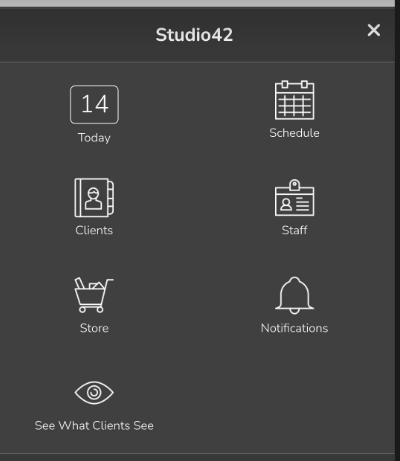
- On the Clients page, select the client of interest.
- Click on the down arrow
 in the upper right hand corner and click the Shopping Cart icon.
 - On the Choose a product page, select the recurring plan to purchase.
- If the client manages other clients, choose who will use this recurring plan, and click Add to Cart.
- Select Modify, and then doing any of the following:
- Payment info: Start date, first payment due date, second payment due date, manual or automatic payments
- Pricing: Price
- First Invoice Adjustment: Only applies when there is proration applied for the first payment
- Discounts: Discount by a percentage or set amount off for the first payment or all payments
- Required number of payments: Plans may have a minimum number of payments due before cancelation fees can be waived
- Restrictions: Change the number of visits allowed per day, week or month; change roll over visit rules
- When finished, tap Back to Shopping Cart.
- If applicable, under TOTAL click Enter coupon code, enter the code, and then click Apply.
- Tap Secure Checkout.
- Ensure the Location is correct.
- Choose whether or not to send an email receipt to the client. The default is Yes. Ensure the email address is correct.
- Click Choose a payment method, and then choose a payment option.
- To make a full payment, check that the full payment amount is correct, specify who should receive a sales commission, the location of sale, and whether to email the client a receipt, and then click Finish.
- To make a partial payment, enter an amount that is less than the total, specify who should receive a sales commission, the location of sale, and whether to email the client a receipt, and then click Make Partial Payment.
- To split a payment between payment methods, enter an amount that is less than the total, specify who should receive a sales commission, the location of sale, and whether to email the client a receipt. Click + Add another payment, choose the second payment method, and then click Finish.
Desktop
- At the top of any Pike13 page, click Clients.
- Select the client making a purchase, and click the New Purchase button.
- On the Choose a product page, select the pass to purchase.
- If the client manages other clients, choose who will use this recurring plan, and click Add to Cart.
- Select Modify, and then doing any of the following:
- Payment info: Start date, first payment due date, second payment due date, manual or automatic payments
- Pricing: Price
- First Invoice Adjustment: Only applies when there is proration applied for the first payment
- Discounts: Discount by a percentage or set amount off for the first payment or all payments
- Required number of payments: Plans may have a minimum number of payments due before cancelation fees can be waived
- Restrictions: Change the number of visits allowed per day, week or month; change roll over visit rules
- When finished, tap Back to Shopping Cart.
- If applicable, under TOTAL click Enter coupon code, enter the code, and then click Apply.
- Tap Secure Checkout.
- Ensure the Location is correct.
- Choose whether or not to send an email receipt to the client. The default is Yes. Ensure the email address is correct.
- Click Choose a payment method, and then choose a payment option.
- To make a full payment, check that the full payment amount is correct, specify who should receive a sales commission, the location of sale, and whether to email the client a receipt, and then click Finish.
- To make a partial payment, enter an amount that is less than the total, specify who should receive a sales commission, the location of sale, and whether to email the client a receipt, and then click Make Partial Payment.
- To split a payment between payment methods, enter an amount that is less than the total, specify who should receive a sales commission, the location of sale, and whether to email the client a receipt. Click + Add another payment, choose the second payment method, and then click Finish.