
How to update the Layout, Navigation, and Branding to match your unique business
In this article
Who can use this feature?
- Pike13 Plans: ✅Premium, ✅Advanced, ✅Essential
- User Roles: ✅Primary Owner, ✅Owner, ✅Manager, ❌Staff, ❌Limited Staff
Configure your Pike13 Website
- Go to Settings at the top of any page then select Pike13 Website.
- At the top of the page, you can click on each tab to configure how your website will appear to clients. Once you have made changes, you will see them in the Preview below.
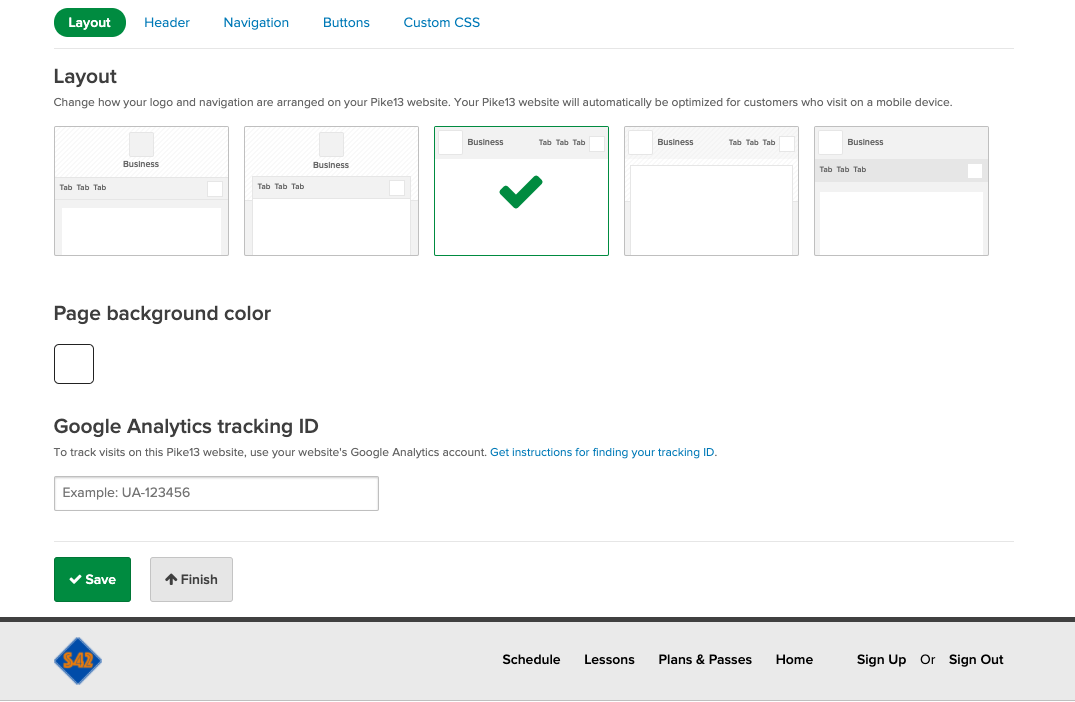
Update your Layout
- Select one of the 5 predefined layouts that best works with your logo and navigation preference. Your Pike13 website will automatically be optimized for desktop and mobile devices.
- Select the Page Background Color which is the color that appears behind the main page of your Pike13 Website.
- Add the Google Analytics Measurement ID if your business is on the Advance or Premium plan. To track visits on this Pike13 website, use your website's Google Analytics account. Instructions for finding your Measurement ID.
- Custom CSS: (Advanced/Premium Plans) For deep visual customization, you can apply your own CSS code.
Update your Header
Customize the top section of your site to make a strong first impression.
- Depending on the layout chosen, you may be able to add a Cover Photo
- Recommended image size: 1200x600 pixels
- Minimum image size: 600x300 pixels
- Maximum file size: 10 MB
- Images can be set to Fill (default), Fit, Center or Tile within the header space.
- Set a background color that appears behind the cover photo.
- Select if your business logo will show within the header space.
- Select if your business name will show within the header space.
Create Navigation Pages
Define what your clients see when they first arrive and how they move through your site.
You can add links to your navigation bar for specific Pike13 content or external sites. The first tab in your list will automatically serve as your Home Page. Use the arrows to reorder them.
- A list of all of your services
- A list of your service categories
- A specific service category
- A specific service
- A list of your passes and plans
- A specific plan or pass
- Class and course schedule for all locations
- A list of your business locations
- A list of your staff members
- A specific staff member
- An external website
- A custom page
Buttons
Ensure your "Call to Action" buttons are on-brand. Use the color picker to select the Button and Link Colors that best match your business identity.
Note
Custom CSS
The ability to add custom CSS to your Pike13 Website is available only with the Advance or Premium plan. For more information on this feature, click here.