
Pike13 requires clients and guardians of minors to sign all necessary waivers during initial registration or upon their next login, as many businesses mandate these documents before services can be provided.
In this article
Signing a waiver in your Pike13 account
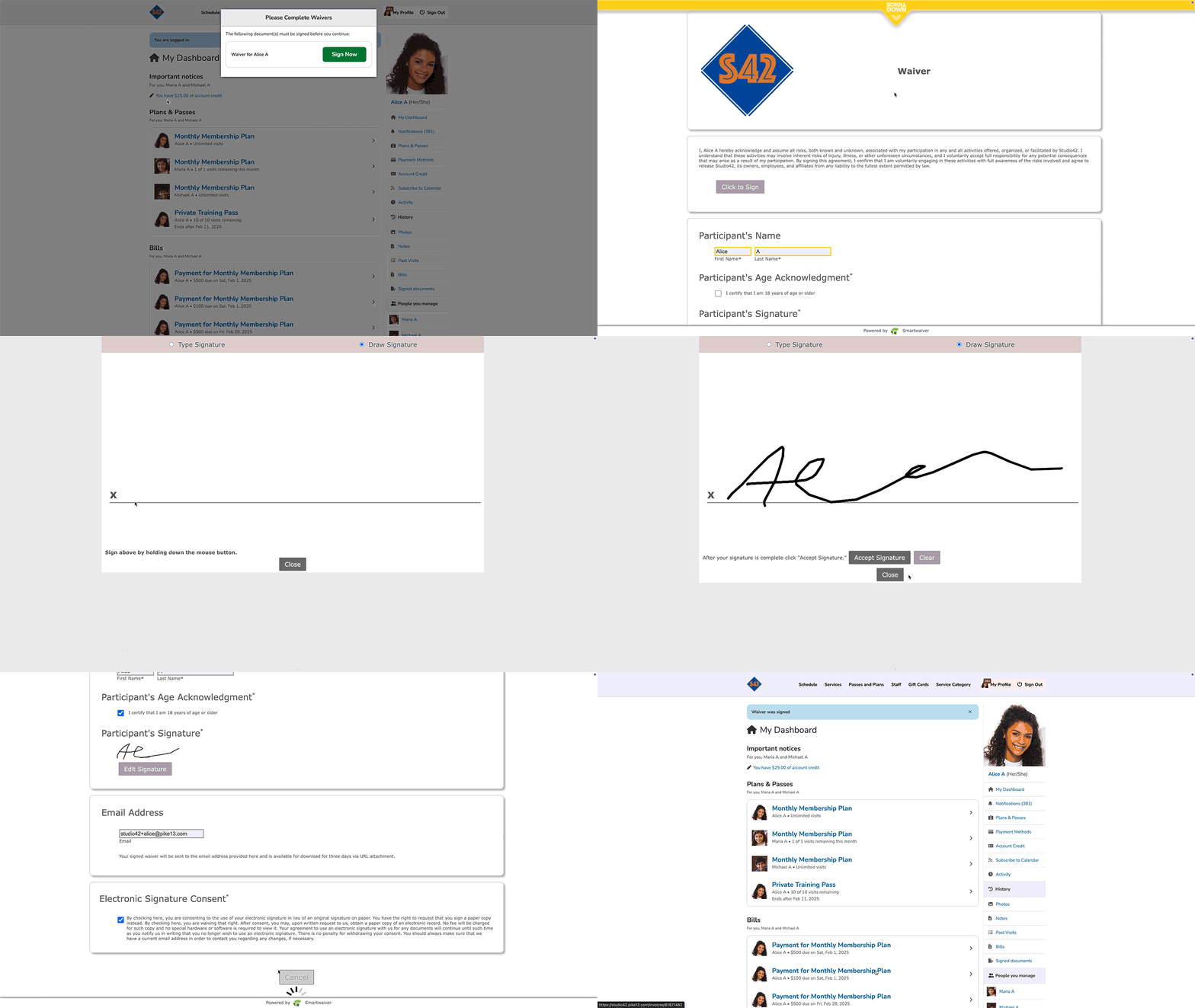
- Sign in to the Pike13 website, and you will be taken directly to a screen asking you to sign the waiver. Select the waiver you need to sign (more than one will appear if you are managing minors).
- If there are specific questions you need to answer, you will be prompted to do so before reviewing and signing the waiver.
Signing a miscellaneous document
- In order to sign a miscellaneous document, the business will send an email requesting a signature.
- Open the email and click on the "Complete and Sign" button.
- Clicking the button will open up the document in Smartwaiver to sign.
- Complete and sign the document.
- Choose "Agree to Document" to submit.
Reviewing your signed waiver/documents in your Pike13 account
- Sign in to the Pike13 website, and then in the right menu of your dashboard select Signed Documents.
- Select the document you want to review, and then View as PDF.