
While exploring, you can save your work by saving a Look. This saves all of your choices for filters, visualizations, fields, sorting, and so forth.
Saving Looks from an Explore
To save a Look from an Explore:
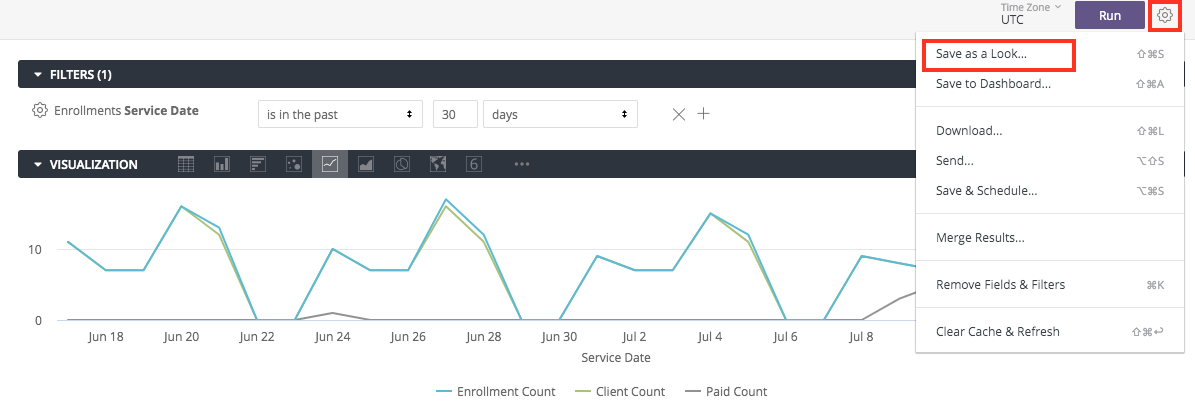
- In the upper right of the Explore, click the gear icon.
- Choose Save as a Look.
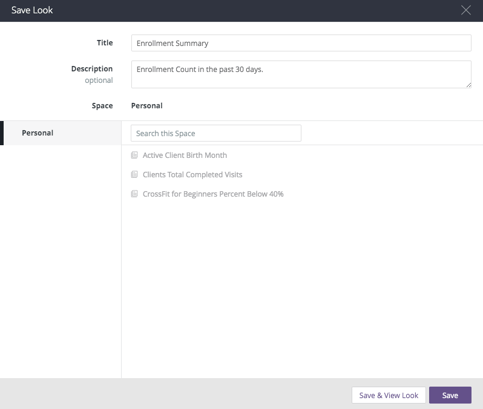
- In Title, enter a new title. If you will be saving over an existing Look, leave this blank.
- In Description, you can enter a description of the Look. If you will be saving over an existing Look, leave this blank.
- Save your Look.
- To save and return to the Explore page, click Save.
- To save and view your Look, click Save & View Look.
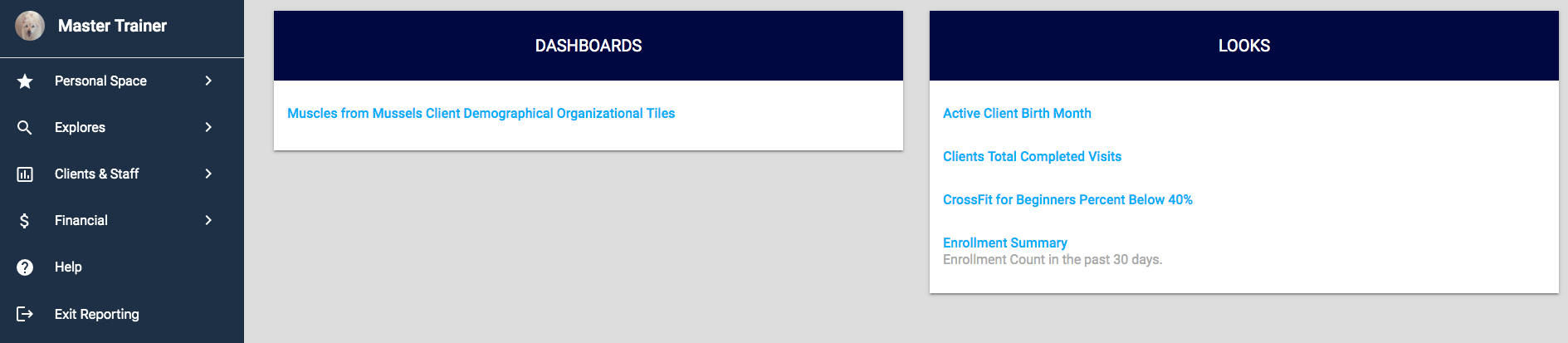
Navigate to the Personal Folder to See Your Looks
Editing Looks
After creating a Look, you can edit its underlying query, edit its name, and decide if it should automatically run when loaded.
Editing a Look’s Source Query
You can edit a saved Look’s fields, filters, visualizations, sorting, and so forth by following these steps:
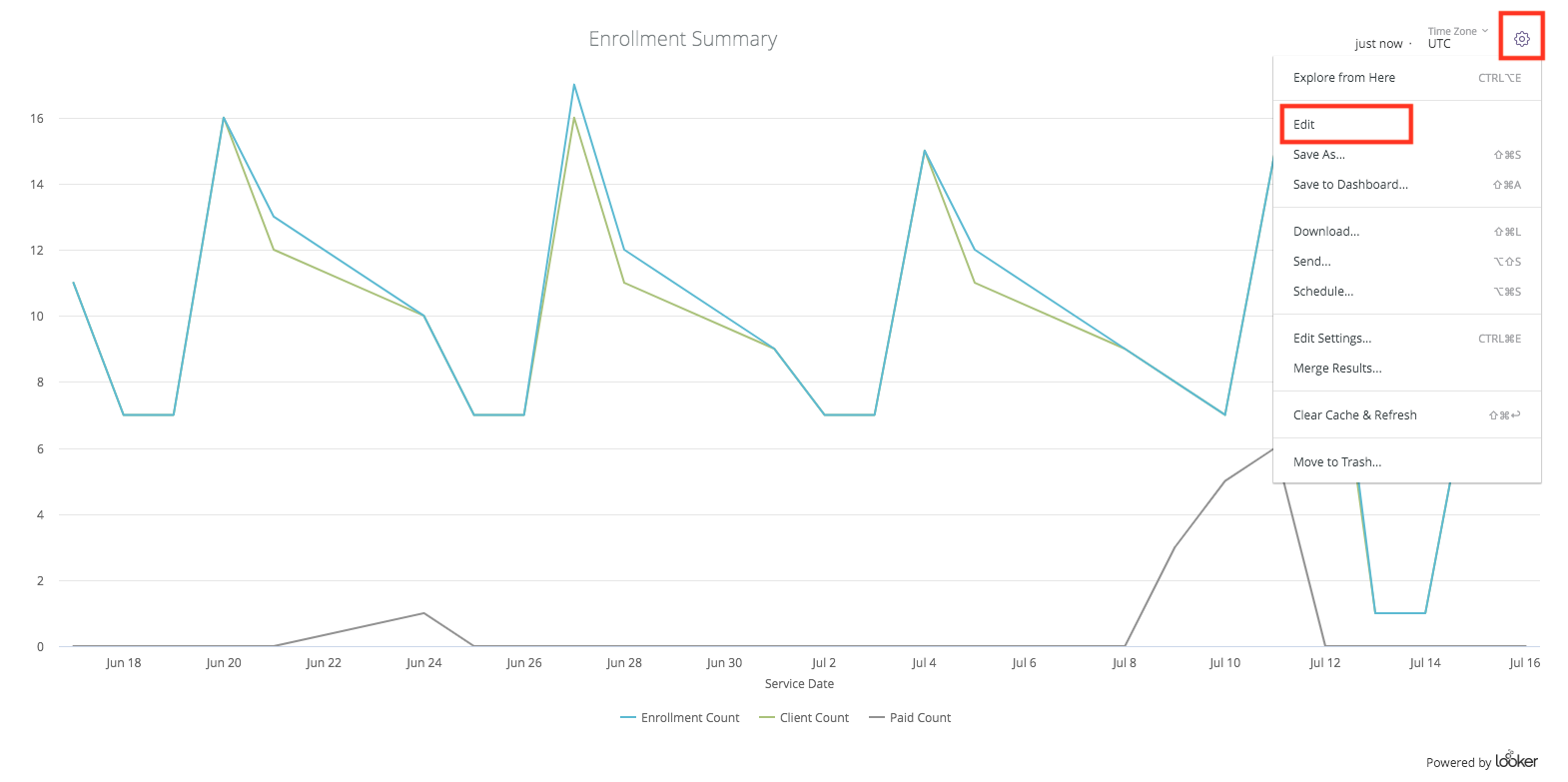
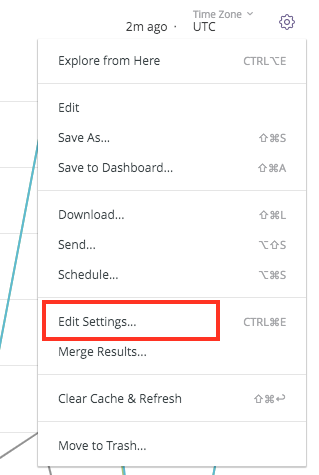
In the saved Look, click the gear icon and click Edit.
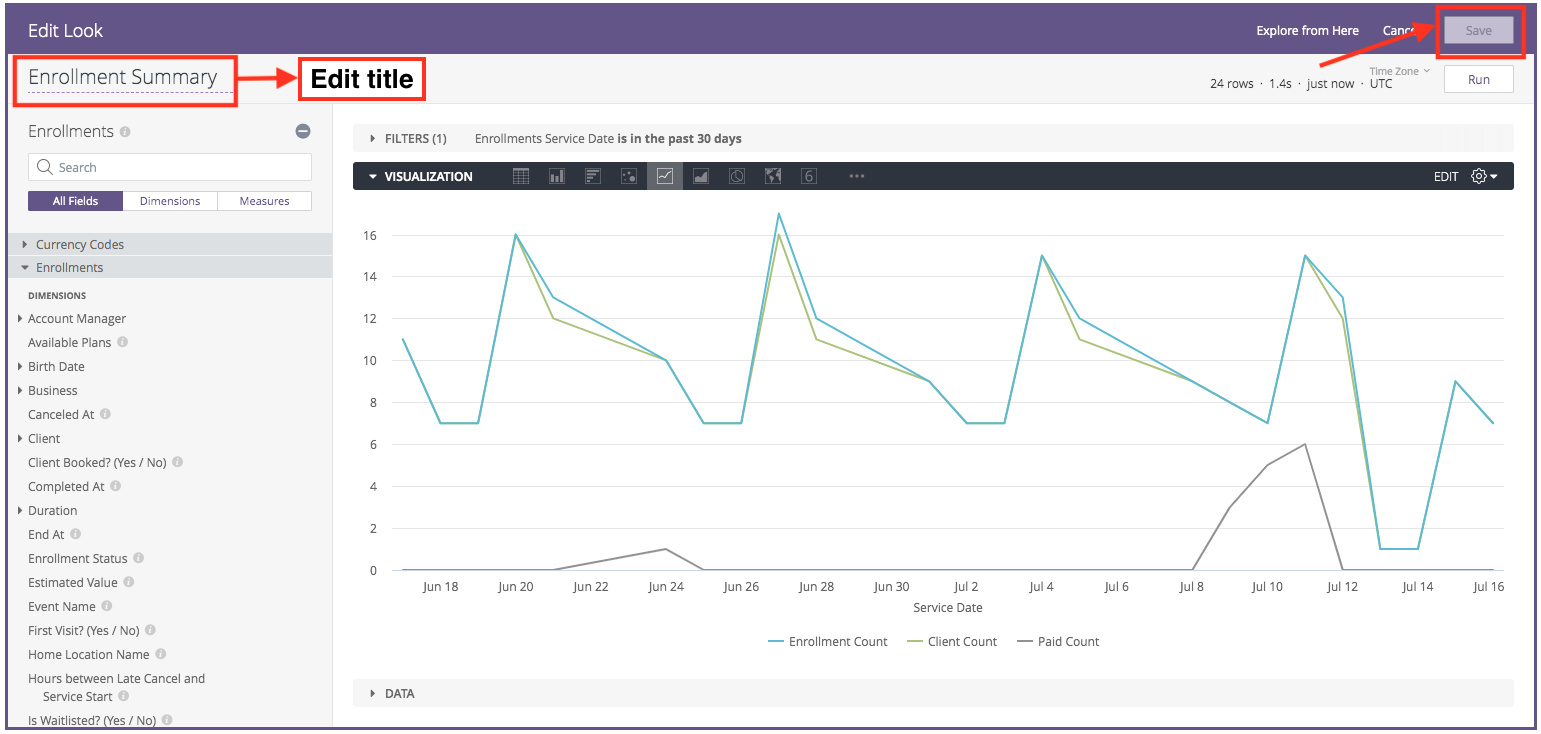
On the Edit Look page, make any changes you want to the Look’s fields, filters, visualization, and so forth.
After you make the desired changes, click the Run button to update the Look.
When the Look is finished running, the Save button will become enabled. Click Save to save your changes.
Turning Off Automatic Run on Load
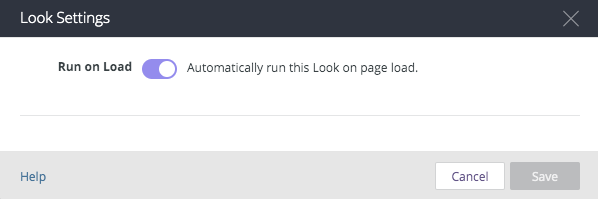
You can prevent a Look from automatically loading its data when a user opens it by adjusting the Run on Load option. If you do choose to prevent the Look from running automatically, the user will see this when they initially load it.
Deleting a Look
You can delete a single Look directly from the Look’s gear menu at the upper right of the screen:
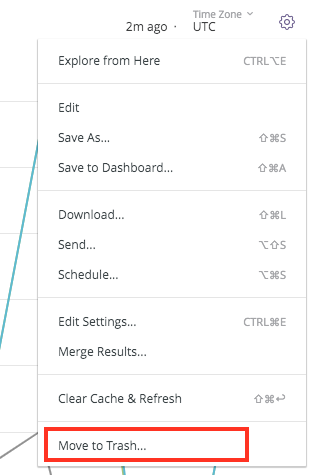
Click OK in the confirmation box to delete the Look.
Conclusion
Looks let you save the results of your exploration to view later or add to dashboards. Now learn how to create your own dashboard.