
Notes allow you to communicate effectively with staff and clients. You can post private notes for internal staff use, send public notes to individual clients or entire rosters, or create website notes that appear on your client-facing Pike13 site and are emailed to all enrolled students.
In This Article
Who can use this feature?
- Pike13 Plans: ✅Premium, ✅Advanced, ✅Essential
- User Roles: ✅Primary Owner, ✅Owner, ✅Manager, ✅Staff, ❌Limited Staff
Enabling Public Notes for Limited Staff
By default, Limited Staff cannot post public notes. To grant this access:- At the top of any Pike13 page, click Settings, then click Staff Permissions.
- Click Change by Send Public Notes.
- Toggle the Send Public Notes setting to On for each staff person of interest.
Types of Notes and Visibility
Choosing the right note type depends on who needs to see the information and when they need to see it.
- Private Notes (Staff/Internal Only)
- Applies to: Classes, Courses, Appointments and Client Profiles.
- Best for: Staff handoffs, internal reminders, or client progress tracking.
- Where they appear: On client profiles or an event. Only visible to staff members; clients never see these.
- Public Notes (Clients Post-Enrollment)
- Applies to: Classes, Courses, Appointments and Client Profiles
- Best for: Sharing sensitive information (like a Zoom password or door PIN) that should only be seen by event attendees or updates/reminders for a client about their personal activity or status.
- Timing: For scheduled events, clients only see these after they have enrolled in a class, appointment, or course. For profile updates, clients are sent an email notification immediately.
- Where they appear:
- On a client profile, visible to the client and staff. In the Notes tab from the Roster.
- Direct email notification to client or current roster.
- Enrollment confirmation email.
- Upcoming visit details page.
- Visit reminder email.
- Website Notes (Maximum Exposure)
- Applies to: Classes and Courses.
- Best for: General instructions, equipment lists, or links that help a client decide whether to sign up.
- Timing: Visible before, during, and after enrollment.
- Where they appear:
- Public Schedule: Shown on the schedule pop-up before booking.
- Enrollment Flow: Shown on the confirmation page and confirmation email.
- Reminders: Shown on the upcoming visit details and visit reminder emails.
- Notifications: Sent as a direct email to everyone currently on the roster.
Adding Notes to Client Profiles
- At the top of any Pike13 page, click Clients, and select the client of interest.
- Under the client’s profile picture, click New Note.
- Enter your message and select the appropriate visibility setting:
-
Public: Sends the note directly to the client’s email address.
-
Private: Saves an internal note visible only to staff members.
-
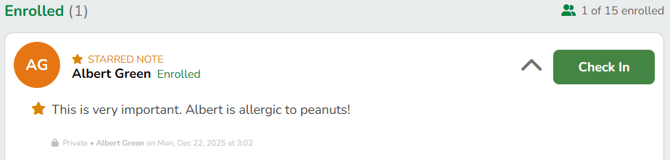
- To keep a note permanently visible at the top of the staff view, select ★ Star this note.
- To see a client's starred notes from a roster, click the gear icon next to their name. A ★ indicates the client has a starred note.
Note
Adding Files
Only photo file types are supported for upload. PNG and JPEG types are recommended.
- At the top of any Pike13 page, click Schedule, and choose a class, course or appointment from the calendar.
- Click the Notes tab.
- Enter your content and select one of the following:
- Private: Saves the note visible only to staff members.
- Public: Sends the note as an email to every client enrolled in the class.
- Pike13 Website: Sends the note as an email to every client enrolled in the class and includes it in the event description on the website for the general public to see.
- Appointments can only have public or private notes.
Note
Adding Files
Only photo file types are supported for upload. PNG and JPEG types are recommended.