
Google Analytics tracks real-time and historical visitor demographics, behavior, and engagement metrics like page views and device types.
In this article
Who can use this feature?
- Pike13 Plans: ✅Premium, ✅Advanced, ❌Essential
- User Roles: ✅Primary Owner, ✅Owner, ✅Manager, ❌Staff, ❌Limited Staff
Create a Google Analytics Account
To use Google Analytics for your client-facing Pike13 page you will need to first create a Google Analytics account then add the Google Analytics Measurement ID into your Pike13 site.
To create an account, visit the Google Analytics website, and retrieve your Google Analytics Measurement ID.
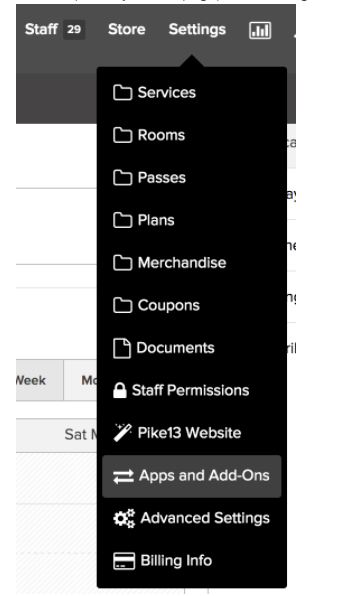
Install Google Analytics IDs- At the top of any Pike13 page, click Settings. In the drop-down, choose Apps & Add-ons.
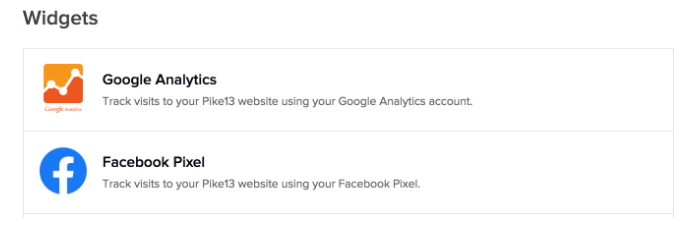
- In the Widgets section, select Google Analytics.
- Click the New button in the Google Analytics box
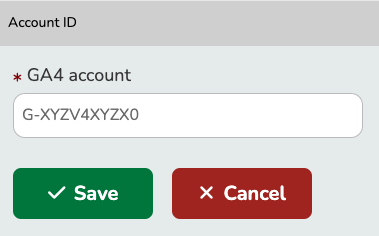
- Enter your Google Analytics Measurement ID then click Save.
Caution
Please note that the data in the box is just placeholder data for illustration. Your Google id will be different. It must begin with G-.
Trackable Events
In your Google Analytics account, you can also choose to track 4 events. Pike13 automatically triggers specific events in your GA4 property when clients take action. The data is passed through the following event names and parameters:
| Event Name | Description | Parameters Included |
| sign_up | A person creates a new account. | Subdomain |
| login | A person signs into their account. | Subdomain |
| enrollment | A person signs up for a specific service. | Subdomain, Service Name |
| purchase | A person pays an invoice. | Invoice ID, Invoice Total (Value) |
Key Events
You can mark these actions as Key Events (formerly known as Conversions) in GA4 to track your marketing success. The purchase event is typically marked as a Key Event by default.
Adding Events
In your Google Analytics account, you can add. Here are Google's instructions on how to add events. Set up events in Google Analytics
Cross-domain Tracking
If you want to track a user’s journey as they move from your main marketing website (e.g., www.yourstudio.com) to your Pike13 site (e.g., yourstudio.pike13.com), you must set up cross-domain measurement.
-
In Google Analytics, go to Admin > Data Streams.
-
Select your web data stream.
-
Click Configure tag settings > Configure your domains.
-
Add both your primary marketing domain and your Pike13 subdomain.
-
In Pike13, ensure your Measurement ID is also added under Settings > Pike13 Website > Layout if you are using the Pike13 Website builder.
In Google Analytics, if you are tracking multiple sites using the same Google Analytics account, and you want to track traffic across multiple domains, we recommend you set up "Cross-domain tracking". A common use case would be to track traffic between your marketing website and your Pike13 site.
More information can be found in the Google documentation - [GA4] Set up cross-domain measurement
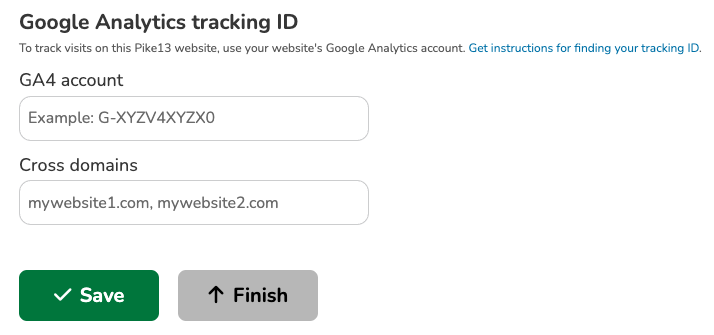
To add this to your Pike13 website, you will need your marketing website domain, your Google Analytics Measurement id and your tracking code using gtag.js. To add this to your Pike13 website, go to Settings and choose Pike13 Website. Under Layout, add this information here.
CAUTION
Please note that the data in those boxes is just placeholder data to illustrate what your data might look like. Your actual data will differ in appearance. Your Measurement id must begin with G-.
WARNING
GA4 setup and event customization may require technical familiarity or assistance from a developer. Support for Google Analytics is beyond the scope of Pike13. For more information visit the Google Analytics Support Page