
The Transactions by Invoice Item report provides invoice item-level details of a transaction. From this report, you can create views that show how much revenue and tax collected for each product, breakdowns of transactions by revenue category, the number of failed transactions, and more. Transactions can also be viewed by various timeframes such as daily, weekly, monthly or custom time ranges.
In This Article
Who can use this feature?
- Pike13 Plans: ✅Premium, ✅Advanced, ✅Essential
- User Roles: ✅Primary Owner, ✅Owner, ❌Manager, ❌Staff, ❌Limited Staff
How It Works: Proportional Allocation
Crucial Concept: Transactions are made against an entire Invoice, not individual items. To report on specific items, Pike13 uses Proportional Allocation. This applies to refunds and voids as well.
This means if a client makes a partial payment on an invoice containing multiple items, the payment is split mathematically between those items based on their value.
The Math Example: Imagine an Invoice totaling $100 containing two items:
-
Monthly Plan: $90 (90% of the invoice)
-
Signup Fee: $10 (10% of the invoice)
If the client pays $50 towards this invoice:
-
The Plan receives $45 (90% of the transaction).
-
The Fee receives $5 (10% of the transaction).
-
The report will show two rows for this single transaction: one for the plan and one for the fee.
Quick Views
Transactions Today by Revenue Category - A snapshot of today's income grouped by your business categories.
Transactions Last Month by Product Name - Summary of Transactions last month for each Pass, Plan and merchandise item.
Transactions Last Month by Product Type - Summary of Transactions last month grouped by Product Type (recurring, pass, retail, etc.)
Summary View
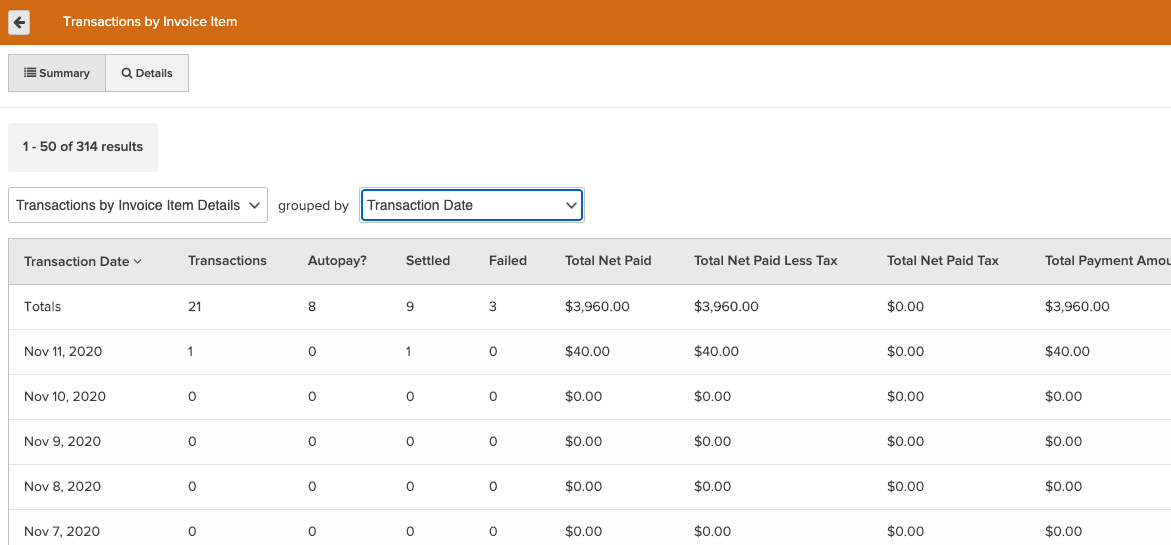
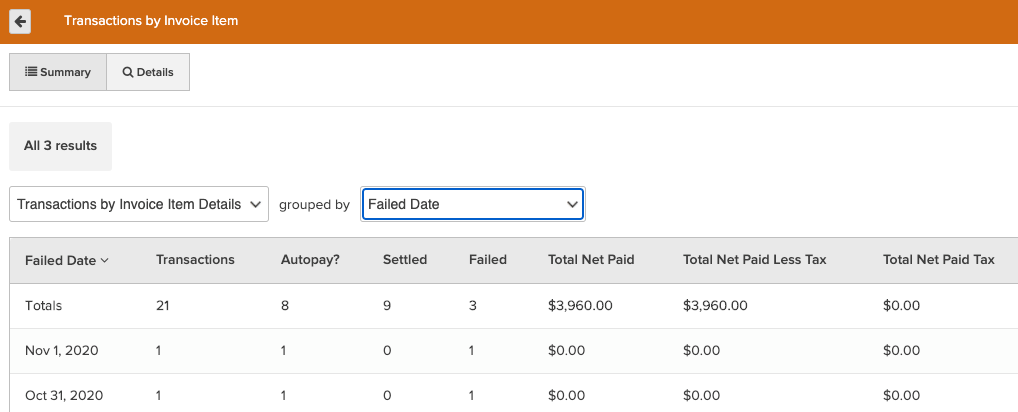
The summary view aggregates your data. You can group these views by Transaction Details, Payment Method, or Processing Method.
Key Metrics Calculated:
Transactions by Invoice Item Details
- Transactions - The count of unique transactions
- Autopay - The count of unique transactions created by automated billing
- Settled - The count of unique settled transactions
- Failed - The count of unique failed transactions
- Total Net Paid - Sum of all successful, non-refunded payments
- Total Net Paid Less Tax - The portion of Total Net Paid that is not allocated to tax
- Total Net Paid Tax - The portion of Total Net Paid that is allocated to tax
- Total Payment Amount - Sum of all successful payments
- Total Refund Amount - Sum of all successful refunds
Payment Method
- Total Net Paid - Sum of all successful, non-refunded payments
- Cash - Sum of all successful, non-refunded payments made in cash
- Check - Sum of all successful, non-refunded payments made by check
- ACH - Sum of all successful, non-refunded payments made by ACH
- Account Credit - Sum of all successful, non-refunded payments made by account credit
- American Express - Sum of all successful, non-refunded payments made by American Express
- Discover - Sum of all successful, non-refunded payments made by Discover
- Mastercard - Sum of all successful, non-refunded payments made by Mastercard
- Visa - Sum of all successful, non-refunded payments made by Visa
- Other Credit Card - Sum of all successful, non-refunded payments made by an other credit card
- External Payment - Sum of all successful, non-refunded payments made by an external payment method
Processing Method
- Total Net Paid - Sum of all successful, non-refunded payments
- GlobalPay - Sum of all successful, non-refunded payments processed by GlobalPay (for Visa, Mastercard, and Discover)
- American Express - Sum of all successful, non-refunded payments processed by American Express
- Other - Sum of all successful, non-refunded payments processed by an other processing method
Key Dates
You can filter or group this report by two specific dates, with corresponding options to group by Week, Month, Quarter, or Year:
-
Transaction Date: The day the payment was actually attempted or collected.
-
Failed Date: The day a transaction was declined (useful for reviewing failed auto-pays).
Details View
The Details view shows greater details on each invoice item's attributed transaction amounts. This view can easily be filtered to a desired timeframe, specific transaction statuses (such as failed transactions), clients, and more.
Below is a glossary of available fields:
- Invoice Number - Unique ID across all invoices for each business. For a franchise report, this number would not be unique. It is only unique at the business level. This is different from Invoice ID in that Invoice ID is unique across all invoices, not just those for this business.
- Invoice Due Date - Date when the invoice is expected to be paid. This is displayed in the timezone of the business.
- Invoice Status - Current state of the invoice. Possible states include Cart, Open, Closed, Canceled, On Hold, or Purchase Request.
- Transaction Status - Current state of the transaction. Possible states include Completed, Failed, Checkout, Processing, Voided, or Settled.
- Product Name - Current product name. Note that product names can change over time.
- Revenue Category - Business-defined revenue category assigned to a service or product. An invoice item will have at most one revenue cateogry.
- Product Type - Type of the product purchased. Possible types include Retail, Recurring, Pass, Signup Fee, Hold Fee, and more.
- Membership? - Indicates whether the item purchased grants membership status.
- Transaction At - Date and time when the transaction was created. This is displayed in the timezone of the business.
- Transaction Date - Date when the transaction was created. This is displayed in the timezone of the business.
- Transaction Type - Type of the transaction. Possible values include Payment or Refund.
- Transaction Amount - Amount of the transaction.
- Payer - Full name of the person who made the transaction.
- Payer Home Location - Current home location of the person who made the transaction. This is the payer's primary location of use.
- Payer's Primary Staff Member - Full name of the payer's current primary staff member.
- Payment Method - Payment method used for the transaction. Possible values include ACH, Cash, Check, Account Credit, Credit Card, External, Free, PayPal, or Other.
- Credit Card Name - Name of the credit card used for the transaction, if applicable.
- Processing Method - Processing method of the transaction. Possible values include Global Pay, American Express, Other.
- External Payment Name - Name of the external payment type as defined by the business.
- External Transaction Id - ID associated with the payment method used for the transaction, if available. For example, this could be the check number when purchased with a check or the processing ID from a merchant processor when a credit card is used.
- Net Paid - Amount of the successful transaction. For payments, this is the paid amount. For refunds, this is the refunded amount.
- Net Paid Less Tax - Portion of Net Paid that is not allocated to tax.
- Net Paid Tax - Portion of Net Paid that is allocated to tax.
- Payment Amount - Amount of the successful payment.
- Refund Amount - Amount of the successful refund.
- Autopay? - Indicates whether the transaction was created as part of automated billing.
- Sale Location - Name of the business location where the sale occurred.
- Invoice Created By - Full name of client or staff member who created the invoice.
- Void At - Date and time when the transaction was voided. This is displayed in the timezone of the business.
- Failed At - Date and time when the transaction failed. This is displayed in the timezone of the business.
- Error Message - Error message if the transaction failed.
- Transaction ID - Unique ID across all transactions.
- Invoice ID - Unique ID across all invoices.
- Invoice Item ID - Unique ID across all invoice items.
- Payer ID - Unique ID for the person paying the invoice.