
If your business is required to collect sales tax, you can configure these rates globally in Pike13. You can set a default rate for all products, specify rates by location, and choose whether your listed prices already include the tax.
In This article
Who can use this feature?
- Pike13 Plans: ✅Premium, ✅Advanced, ✅Essential
- User Roles: ✅Primary Owner, ✅Owner, ✅Manager, ❌Staff, ❌Limited Staff
Adding Sales Tax
- At the top of any Pike13 page, select Settings > Advanced Settings.
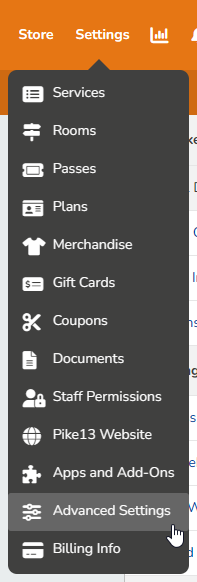
- In the right-hand menu, choose Checkout > Sales Tax.
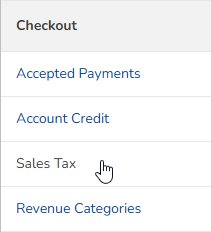
- To add a default tax rate, click + New Tax.
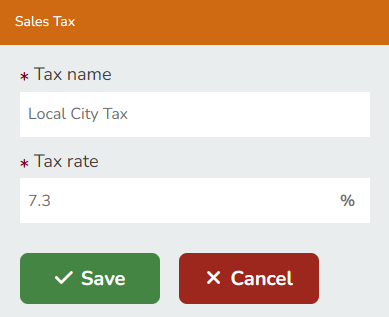
- On the Sales Tax page, enter a tax name and a tax rate, and then click Save
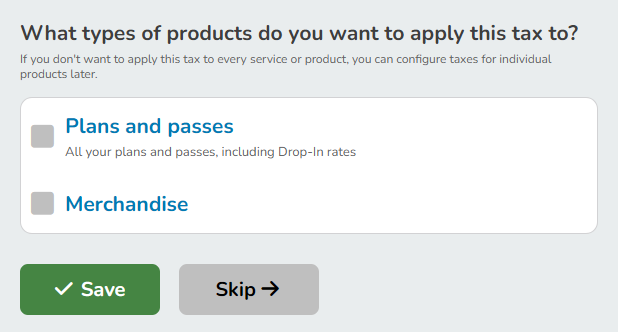
- Under What types of products do you want to apply this tax to?, select all of the product types that you want to add sales tax to, then click Save.
- If your business has additional locations with a different local tax rate, from the drop-down box choose the location for which you want to apply the separate tax rate, click Add Location-specific Tax Rate, select the location, enter the local tax rate, and then click Save.
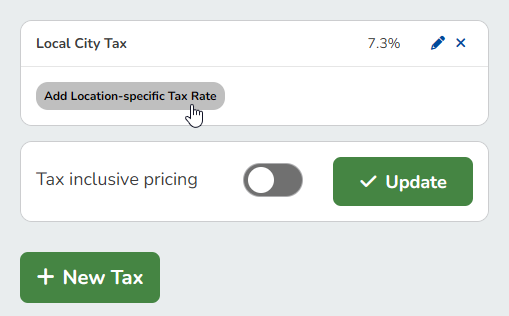
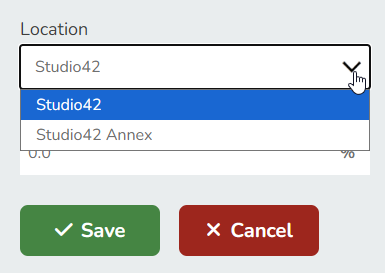
- To take advantage of tax-inclusive pricing, on the Sales Tax page, click the Tax inclusive pricing checkbox to check it, and then click Update.
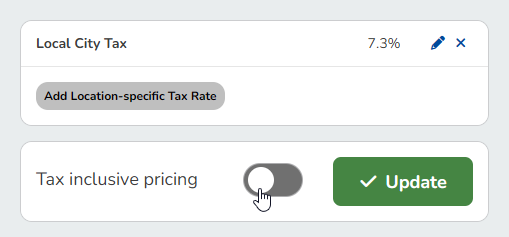
Note
Enabling Tax-Inclusive Pricing
Enable tax inclusive pricing if you want Pike13 to charge your clients the price that is listed in your Store.
Example: A $100 pass with 10% tax. Client pays $100. (Revenue = ~$90.91, Tax = ~$9.09).
If tax-inclusive pricing is disabled, Pike13 will add the tax to the price of the pass. In this example, Pike13 will collect $110 from the client where $100 is for the pass and $10 is for sales tax.
Removing Sales Tax From a Pass or Plan
- To remove sales tax form an individual product, go to Settings.
- Select Plans, Passes or Merchandise.
- Click on the product you wish to modify.
- Under Pricing, click Edit next to Price.
- Under Choose applicable taxes, unselect tax.
- Click Save.
Cancellation Fees
- Click on Settings at the top of any page.
- Choose Services.
- Select the service you wish to modify.
- Click on the Cancellation tab.
- Choose to Edit the Cancellation fee.
- Under Choose applicable taxes, click on the box to apply sales tax to the cancellation fee.
- Click Save.