
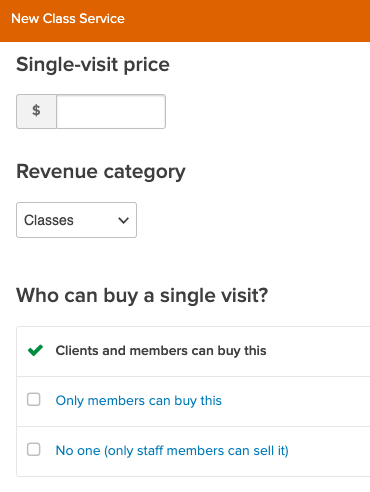
A single-visit price is required when creating a service. You can limit who can buy the single visit pass to client and members, members only, or only staff members can sell it.
In this article
Who can use this feature?
- Pike13 Plans: ✅Premium, ✅Advanced, ✅Essential
- User Roles: ✅Primary Owner, ✅Owner, ✅Manager, ❌Staff, ❌Limited Staff
Configuring a single visit pass when creating a class/appointment service
- Select Settings at the top of any Pike13 page.
- Click on Services.
- Select to create a + New Service.
- Choose + New Class Service or + New Appointment Service
- Enter a single-visit price, select a revenue category and who can purchase a single visit.
- Continue configuring the service.
Warning
A single visit in a service cannot be removed
The single visit cannot be turned off and all fields must be completed for a single visit. If you do not wish to allow clients to purchase or see the single visit price, you can choose to set it to No one (only staff members can sell it).
Modifying a single visit pass in a class/appointment service
- Go to Settings at the top of any page.
- Click on Services.
- Choose the service you wish to update.
- Click on the Details tab.
- Scroll down and choose to Edit next to Single Visit Pass.
- Make any necessary changes and select Save.
Best Practice
Creating a separate single visit prepaid pass
If you wish to include terms and conditions or allow clients to purchase a single visit prior to enrolling in a class or appointment, you can create a separate prepaid pass that is good for 1 visit. To avoid confusion, we do recommend that you not allow clients to purchase the single visit pass included with the service.