
Bulk Enrollment allows businesses to offer customers a guaranteed time slot in a class by enrolling them into multiple class times at once. This helps increase repeat attendance and simplifies capacity management.
In This Article
- Who can use this feature?
- Prerequisites
- Respecting Schedules
- Bulk Enroll a Client
- Bulk Enroll Multiple Clients
- Removing a Bulk Enrolled Client
Who can use this feature?
- Pike13 Plans: ✅Premium, ✅Advanced, ✅Essential
- User Roles: ✅Primary Owner, ✅Owner, ✅Manager, ✅Staff, ❌Limited Staff
Prerequisites
Bulk Enrollment is a setting that must be enabled by Pike13 Support. If you do not see these options, email help@pike13.com to request that Bulk Enrollment be turned on for your business.
Once enabled, turn it on for specific class services:
-
Go to Settings > Services.
-
Select the class and open the Registration tab.
-
Click Edit next to "Bulk client enrollment by staff" and select Yes, then click Save.
To enable clients to bulk enroll themselves:
-
Go to Settings > Services.
-
Select the class and open the Registration tab.
-
Turn the toggle on (green) next to Client recurring enrollments.
Respecting Schedules
Bulk enrollment enrolls clients in all instances of a particular class time.
Example: If you have a class scheduled for Mondays AND Wednesdays at 9 AM, and you bulk enroll a client into this series, they will be added to both the Monday and Wednesday rosters.
Note: You cannot pick "Mondays only" from a mixed Mon/Wed class series using this tool. You would need to schedule the classes as separate services or manually adjust the enrollment dates.
Bulk Enroll a Client
-
Go to the Schedule and open the specific class event.
-
Enroll the client in their first class.
-
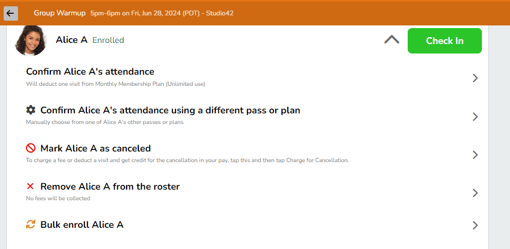
Once they are on the roster, click the Gear Icon next to their name.
-
Click Bulk Enroll [Client Name].
-
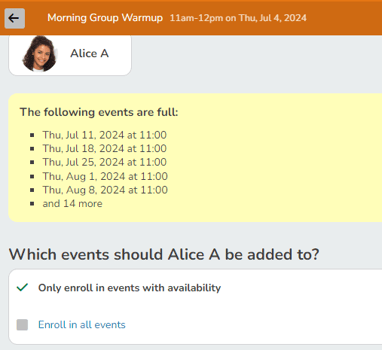
Choose Duration:
-
All events: Enrolls them indefinitely into the future.
-
Date Range: Enrolls them from Start Date to End Date.
-
Number of events: Enrolls them for the next X visits (e.g., "Next 10 classes").
- Conflict Resolution: If the client is already booked in another class at the same time, Pike13 will ask if you want to enroll them anyway or skip the conflicting dates.
-
-
Click Finish.
Bulk Enroll Multiple Clients
-
Go to the upcoming class on the Schedule.
-
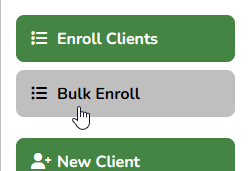
Click the Bulk Enroll button.
-
Search for and select all clients you wish to bulk enroll, then click Finish.
-
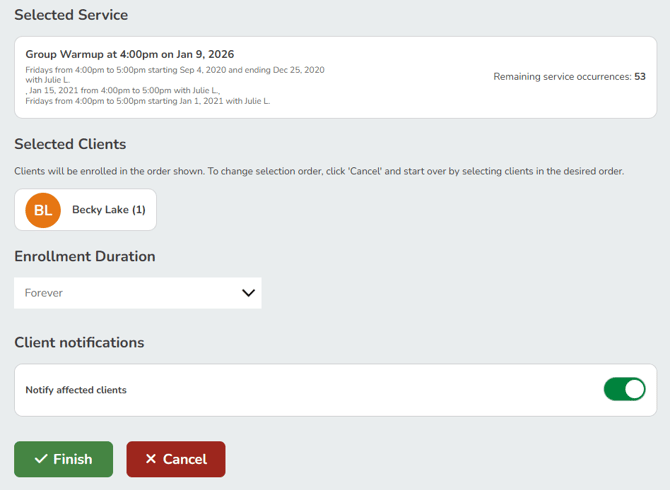
Review the selected service and clients being added.
-
Set the Enrollment Duration for the clients being added.
-
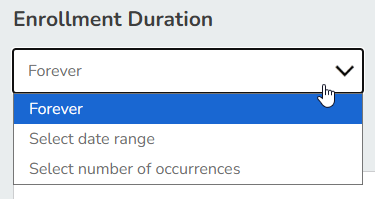
- Forever: this will enroll the selected clients in the occurrence until the occurrence naturally ends. With classes that do not have an end date, but simply recur forever, they will always be enrolled until they are specifically removed.
- Select date range: this will enroll the selected clients in the occurrence until and including the selected end date.
- Select number of occurrences: this will enroll the selected clients in the occurrence for the set number of events including the first one.
-
- Choose whether clients should receive an email confirmation.
-
Click Finish.
⚠️ Warning: Scheduling Conflicts When bulk enrolling multiple clients at a time, Pike13 skips individual conflict checking to save time. It will force-enroll all selected clients, even if one of them is already double-booked at that time. Staff should manually check for overlaps if necessary.
Removing a Bulk Enrolled Client
If a client needs to be removed from their recurring spot:
-
Navigate to the Roster for a scheduled class.
-
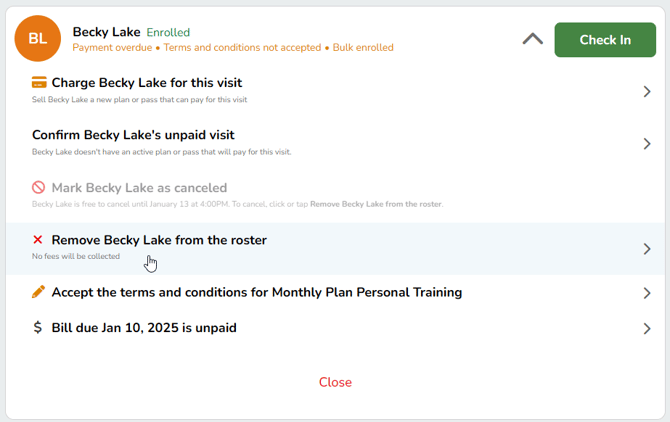
Click the Gear Icon next to the client's name.

-
Click Remove [Client Name] from the roster.
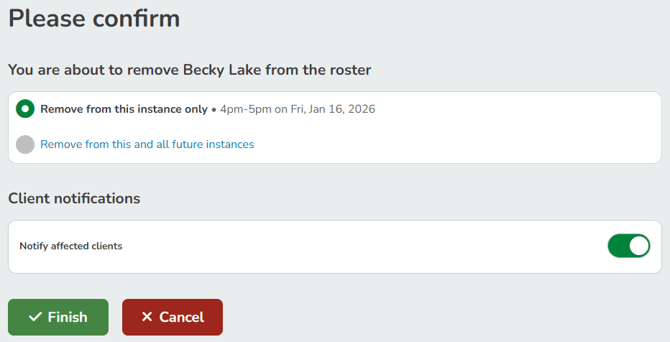
- Choose whether to:
-
Remove from this instance only: will only remove them from the selected roster
- Remove from this and all future instances: will remove them from the selected roster and all rosters in the series afterwards
- Notify affected clients: will email the client about the change
-
-
Click Finish.
If the series of events in which the client was enrolled is very long, it may take time to see the changes. A message like this will be displayed confirming the changes: [Client Name] has been removed. The schedule is being updated.