In This Article
Who can use this feature?
- Pike13 Plans: ✅Premium, ✅Advanced, ✅Essential
- User Roles: ✅Primary Owner, ✅Owner, ✅Manager, ✅Staff, ❌Limited Staff
Booking an Appointment for a Client from the Schedule
- Go to Schedule and select + Book

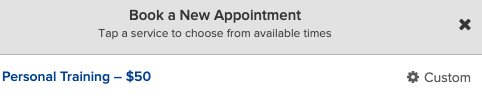
- From here, select the service your client wants to book.
- On the calendar, choose the day that your client wants to book for. Days with fewer available time slots appear in a lighter color. Days with more availability are shaded darker.
- Choose an available time on the day that you have chosen.
- Select Staff Member and click Next.
- Type the client name or names, and then select Next. If the client is new to your business, choose New Client, enter the new client’s profile information, and then select Save New Client.
- Choose how often the appointment repeats, if at all. Then, select Next.
- Review the details of your appointment, and do any of the following:
- Choose whether or not to Notify affected clients
- Add a note for staff to the appointment by selecting + New Note
- Make changes to the appointment by selecting Make Changes
- Complete the process by pressing Book.
Booking an Appointment for a Client from their Profile
- Click on Clients at the top of the page.
- Search for client name and click on their profile
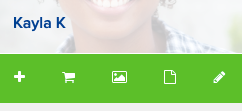
- Click on Plus button (+) in the menu bar on the right side of the page.
- From here, select the service your client wants to book.
- On the calendar, choose the day that your client wants to book for. Days with fewer available time slots appear in a lighter color. Days with more availability are shaded darker.
- Choose an available time on the day you have chosen.
- Select Staff Member and click Next
- Choose how often the appointment repeats, if at all, and then select Next.
- Select whether to notify client then click on Book
Note
Book an appointment outside of a staff member's availability
To book an appointment not based on a staff member's availability, select Custom. From here, staff will be able to configure a custom appointment for a client.