
Pike13 allows you to set when a staff member is available to take appointments. You can set availability so clients can only book during certain hours or days.
In This Article
Who can use this feature?
- Pike13 Plans: ✅Premium, ✅Advanced, ✅Essential
- User Roles: ✅Primary Owner, ✅Owner, ✅Manager, ✅Staff, ❌Limited Staff
Adding Staff Appointment Availability
- At the top of any Pike13 page, select Staff.
- Select a staff member's name.
- Select Appointment Availability.
- Select Set Hours of Availability.
- Select Location to add another location if your site has more than one location in the same time zone.
- Click on the Up Arrow
 next to Select Locations.
 - Edit starting date, starting and ending times, whether this repeats, and if/when it stops repeating.
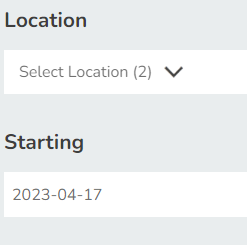
- Select the services that the staff member is available for.
- Select Save.
Permissions for Limited Staff
Limited Staff Members will need their availability set by a Manager, Owner or Primary Owner.
Staff Availability Examples
| For This Schedule | Use These Settings |
|---|---|
| Available Monday through Friday 9 AM–5 PM |
|
| Available every other Saturday 9 AM–5 PM |
|
| Available 9 AM–5 PM on Monday, Wednesday, Friday and noon–7 PM on Tuesdays and Thursday |
First rule:
Second rule:
|
Blocking Staff Appointment Availability
- At the top of any Pike13 page, select Staff.
- Select a staff member's name.
- Select Appointment Availability.
- Select Set Unavailable Hours.
- Select Location to black out more than one if your site has more than one location in the same time zone.
- Click on the Up Arrow next to Select Locations.
- Edit starting date, starting and ending times, whether this repeats and when, as well as if and when it stops repeating.
- Add optional note to appear on the staff member’s profile.
- Select Save.