
In Pike13, a parent or guardian can manage multiple children (dependents) under a single login email. This allows you to pay bills, sign waivers, view schedules and notes, as well as book classes for your entire family from one dashboard.
In This Article
Creating A New Account (First Time Sign-Up)
If you are new to the business, you will set up your family profile during the registration process.
-
Go to the business's Pike13 website and click Sign Up.
-
Enter your Email Address and click Next.
-
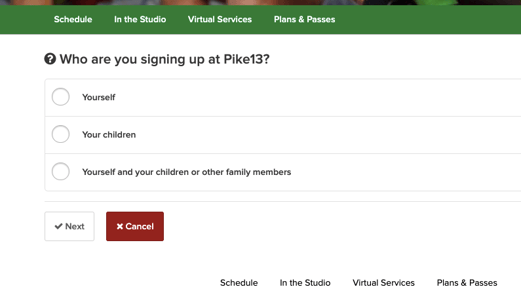
Who are you signing up?
-
Select Your children (if only the child is taking classes).
-
Select Yourself and your children (if you and the child are taking classes).
-
-
Child's Profile: Enter your child's name and birthdate first.
-
Tip: Click + Add Another Dependent if you are signing up multiple children at once.
-
-
Parent's Profile: Enter your own contact information.
-
Click Sign Up.
Adding A Child To An Existing Account
If you already have an account and need to add a sibling or new dependent later:
-
Log In to your Pike13 account.
-
Look for the Managed Clients section (usually in the right-hand menu of your Dashboard).
-
Click + Manage New Client.
-
Enter the child's First Name, Last Name, and Birthday.
-
Click Create.
Tip: Student Logins
If your child is older (e.g., a teenager) and you want them to be able to sign themselves in or check their own schedule:
-
Enter a unique email address in the Email addresses of dependents field during setup.
-
This creates a separate login for them, while keeping you as the account manager.
Signing The Guardian Waiver
Pike13 automatically detects if a client is a minor based on the birthdate entered, which triggers an immediate prompt to sign waivers.
-
Guardian Waiver: You will see a waiver specifically for your child. Sign this as the parent/guardian.
-
Adult Waiver: If you also enrolled yourself in classes, you will be prompted to sign a separate waiver for your own participation.