For businesses offering gift cards, you will be able to track sales in reporting. The product name automatically includes the text "Gift Card," along with the recipient's email, purchaser's name, and the gift card code. You can use this consistent naming convention to filter your financial reports, using the "contains" filter for product name.
In This Article
Running a Gift Card Sales Report
- Navigate to Reporting (Graph icon) next to Settings.
-
Select Financials.
-
Click on the Transactions by Invoice Item report.
-
Click Details to load the data view.
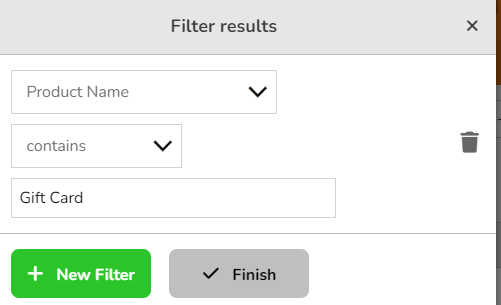
- Add a Filter
- Click Filters > + New Filter
- Set the rule:
Product Name>Contains>Gift Card.
6. Click Finish.
Viewing Purchased Gift Cards (Primary Owners Only)
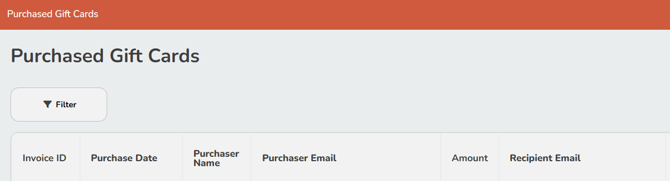
If you need to find a specific Gift Card Code (e.g., if a client lost their email) or see the full details of a purchase, Primary Owners can access a secure list.
- Settings > Gift Cards > Purchased Gift Cards
- This table displays: The Gift Card Code, Purchaser Name, Recipient Email, and the Amount/Balance.
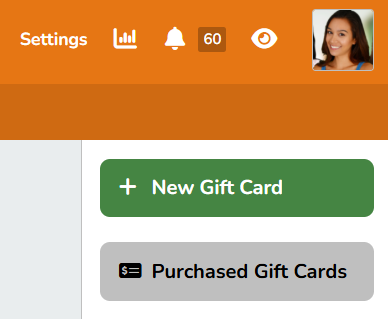
Searching: Use the Filter button on this page to search for a specific purchaser or recipient email.