
After Gift Cards have been enabled for your business and account credit has been configured, you can create gift cards for customers to purchase.
In This Article
Who can use this feature?
- Pike13 Plans: ✅Premium, ❌Advanced, ❌Essential
- User Roles: ✅Primary Owner, ✅Owner, ✅Manager, ❌Staff, ❌Limited Staff
Create Gift Cards
- At the top of any Pike13 page, select Settings, then click Gift Cards.
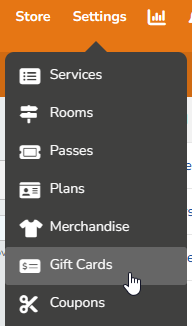
- Click on + New Gift Card.
- Upload an image by clicking Choose File.
- The file must be at least 300x300 pixels in size. If the images does not meet the minimum required dimensions, you will not be able to save the gift card. If you wish to remove the uploaded image, you will need to cancel the gift card creation process and create a new one.
- Enter a Name for the gift card.
- Enter minimum and maximum amount that can be set for the value of the gift card
- Click Create Gift Card.
Configure Gift Card Settings
- At the top of any Pike13 page, select Settings then click Gift Cards.
- Select a gift card to edit.
- Modify the following settings by clicking Edit:
- Visibility - who can see gift cards on your Pike13 Website
- Who may purchase a gift card
- Limit how often a single person may purchase a gift card per day, week or month. This is useful to prevent fraudulent transactions or to limit the amount of service/credit owed by the business.
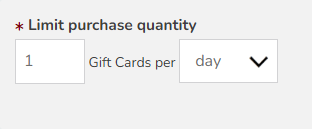
- If a customer reaches the purchase limit, they will see the following message.
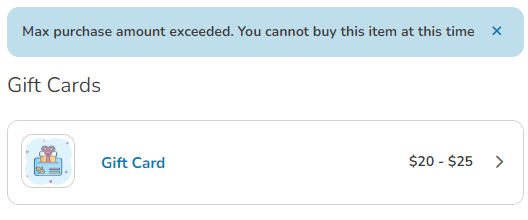
- If a customer reaches the purchase limit, they will see the following message.
- Click Edit on the right side:
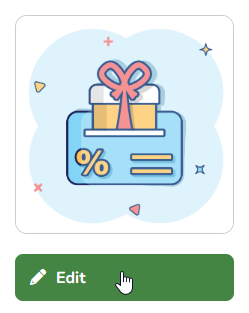
- This will allow modification of:
- Gift card image
- Name
- Minimum and maximum amounts.
- Click Update.
- To sell a gift card online to visitors or clients, follow additional steps for Setting Up Gift Cards.
Further Reading