Gift cards can be a powerful tool for boosting sales and enhancing customer loyalty.
In This Article
Who can use this feature?
- Pike13 Plans: ✅Premium, ✅Advanced, ✅Essential
- User Roles: ✅Primary Owner, ✅Owner, ❌Manager, ❌Staff, ❌Limited Staff
Overview
Gift cards can be a powerful tool for boosting sales and enhancing customer loyalty.
Gift card recipients will be able to redeem their cards for account credit. This credit can be applied toward the purchase of passes, plans, or merchandise.
Once Gift Cards have been enabled for your business, please follow the steps below to configure account credit. This step is essential in allowing you to offer gift cards and configure account credit for your clients.
Configure Account Credit
- Click on Settings in the top right corner.
- Choose Advanced Settings.
- Scroll down to the Checkout section.
- Under Checkout, select Account Credit.
- Enter the desired amount the maximum account credit a client will be able to accumulate.
- After configuring the account credit settings, make sure to save your changes.
Display Gift Cards on Pike13 Website
- Select Settings.
- Choose Pike13 Website.
- From the website dashboard, click on Navigation.
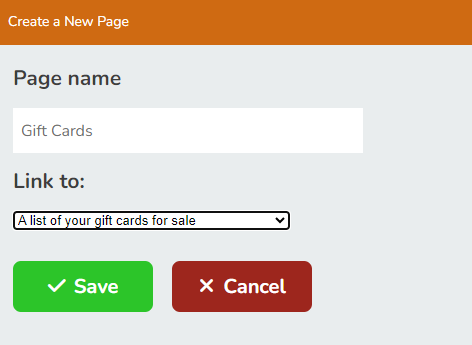
- Choose Create a New Page.
- Create a page name that indicates this section displays gift cards.
- For the Link to dropdown, choose A list of your gift cards for sale.
- Once you've added the necessary details, click Save.