
Importing a pass or plan allows you to grant service credits to a client's account without generating an invoice or immediate financial transaction. This method is ideal for manual adjustments, as it lets you customize start dates and remaining visits without the formal record created by a standard sale.
In This Article
Who can use this feature?
- Pike13 Plans: ✅Premium, ✅Advanced, ✅Essential
- User Roles: ✅Primary Owner, ✅Owner, ✅Manager, ❌Staff, ❌Limited Staff
When To Use "Import"
Use the Import tool for administrative corrections, such as:
-
Migration: Adding plans for clients who already paid you before you started using Pike13.
-
Corrections: Replacing a plan that was set up incorrectly or accidentally canceled.
- Example: replacing a pass with an incorrect expiration date
-
Comps: Giving a free pass to a VIP without creating a $0.00 transaction receipt.
-
Grandfathering: Replacing a client's plan with a custom "Legacy" price.
When NOT to Use "Import"
Do not use this tool if you need to collect money right now (e.g., a signup fee or pro-rated first month). Here are examples of when selling a new pass or plan is the better option:
- The monthly plan available for importing has a signup fee that needs to be charged.
- Only a staff member (without Pike13 permission to import passes and plans) is available.
How to Import A Pass Or Plan
- At the top of any Pike13 page, click Clients.
- Navigate to the Client's Profile.
- On the client’s dashboard under Advanced actions, select Import Existing Plan or Pass.
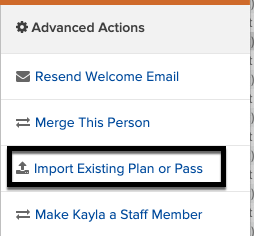
- Choose the specific Pass or Plan from the list.
-
Customize the Details: You can modify the history of this item to match reality:
- Price: Set the recurring price (enter $0.00 if it is fully comped).
-
- Original Start Date: Backdate this if they started last year.
- Next Payment Date: Set when their next automatic bill should run.
- Remaining Visits (for Passes): If they bought a 10-pack but already used 4, enter 6 here.
- Autobill: Check this box to enable automatic billing for future recurring payments (only if payment is made with a credit card or ACH).
- Where Was This Purchased?
- Remaining Commitment
- Is there a limit to how often clients can use this?
- Participants (Group Plans): If this is a shared membership, select the other family members here.
- Click Import Plan (or Import Pass).
Impact On Reporting
It is important to understand how Imports appear in your financial reports:
-
No Initial Transaction: The act of importing does not show up as a "Sale" or "Revenue" in your Transaction reports. The system assumes the original payment was already collected. For any misconfigured passes or plans that you replace, Pike13 reports list as canceled.
-
Future Billings: If you set up a recurring plan via import, all future monthly bills will generate invoices and appear in reports as normal revenue.
Best Practice: Price vs. Discount
-
Changing the Price during Import: If you change the price from $100 to $80 during the import step, Pike13 treats $80 as the standard price for this client. It will not show as a "Discount" in reporting.
-
Tracking Discounts: If you want your reports to specifically show that a client is receiving a "$20 Discount," you should import the plan at the full $100 price, and then manually apply a recurring discount to their future bills in the Plans & Passes tab.