
While owners and managers can manage the availability for any staff member, staff members are limited to updating only their own schedules to designate when they are available for client appointments.
In this article
Who can use this feature?
- Pike13 Plans: ✅Premium, ✅Advanced, ✅Essential
- User Roles: ✅Primary Owner, ✅Owner, ✅Manager, ✅Staff, ❌Limited Staff
Set staff availability for an appointment
- At the top of any Pike13 page, select Settings, and then Services.
- Select the service you want to add staff availability for.
- On the Staff Availability page for that service, under Add availability for, select the name of the staff member you want to make available.
- Select + Set Hours of Availability (if staff member has no availability set up, this option will not show)
- Click the
 to select your location or locations if you have more than one in the same time zone.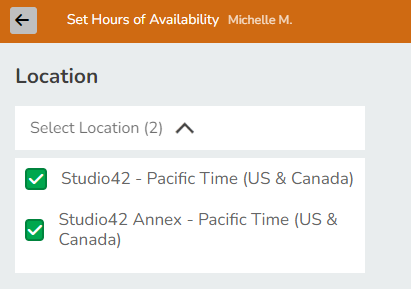
- Click on the
 next to Select Locations.
 - Enter the Starting date.
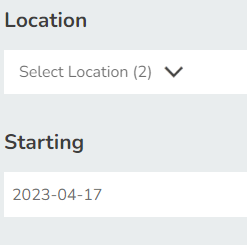
- Enter starting and ending times, how often the schedule repeats, and end date option.
- Select Save
Set an individual staff member's availability
- At the top of any Pike13 page, select Staff, select the name of the staff member whose availability you want to change.
- Select Appointment Availability.
- Select+ Set Hours of Availability
- Click the to select your elect your location or locations if you have more than one in the same time zone.
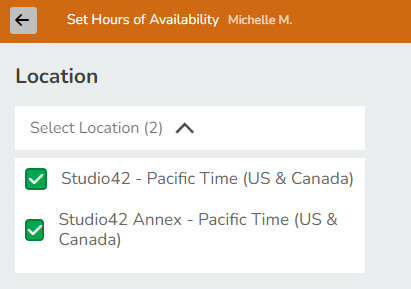
- Click on the next to Select Locations.
- Enter the Starting date.
- Add starting and ending times, how often the schedule repeats, and end date option.
- Specify the services that you're available for, then select Save.
Note
Your Appointment Availability
If you're changing your own appointment availability, select your profile picture in the upper right corner of any Pike13 page, and then select Your Dashboard.