
Before you can run a payroll report, you must define how your staff is compensated. You can set flat rates, percentage-based commissions, and attendance bonuses for classes and appointments.
In This Article
- Who can use this feature?
- Adding Staff Pay Rates
- Video: Pay Rates
- Adding Irregular Payroll Items
- Enabling Tips and Gratuities
Who can use this feature?
- Pike13 Plans: ✅Premium, ✅Advanced, ❌Essential
- User Roles: ✅Primary Owner, ✅Owner, ❌Manager, ❌Staff, ❌Limited Staff
Adding Staff Pay Rates
Pay rates are attached to Services. You create a rate rule (e.g., "$20 per class") and then assign specific staff members to that rule.
-
At the top of any Pike13 page, click Staff.
-
Select Pay Rates from the right sidebar.
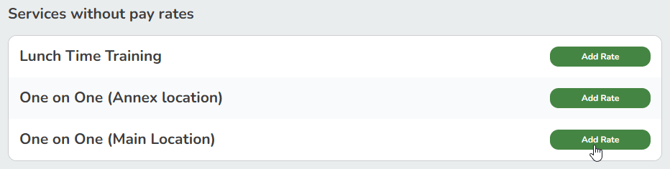
- If no rate exists, find the service in the Services without pay rates section and click Add Rate.
-
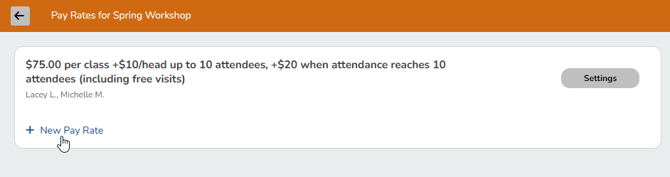
If a rate exists and you want to add another click the service name and then click + New Pay Rate.
-
Fill out the following fields:
- Base Pay
- Classes or Courses: Enter a Fixed dollar amount (e.g., $30 per class).
-
Appointments: Choose either Fixed dollar amount or Percentage of total sale (Commission).
-
Bonuses for attendance
-
Per-client bonuses: Pays an extra amount for every head in the room (e.g., "$1 extra per student").
-
Tiered bonuses: Pays a lump sum when attendance hits a specific number (e.g., "$10 bonus if 10+ students attend").
-
-
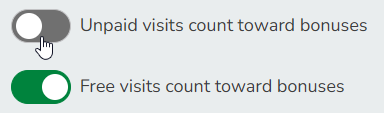
Allow unpaid or free visits to count towards bonuses.
- Base Pay
-
Click Create.
-
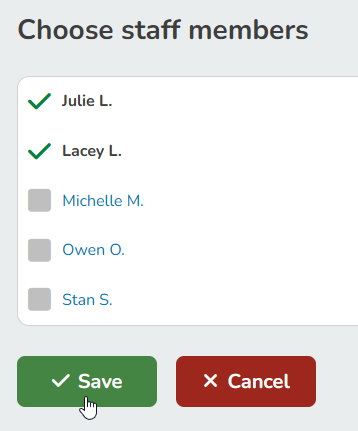
On the Pay Rate Details page, click Assign Staff Members.

- Check the boxes for the employees who should receive this specific rate and click Save.
Warning
Percentage Pay & Unlimited Plans
If an unlimited plan is used for an appointment with a percentage pay rate, the staff pay is based on the single-visit price of the service. Pike13 does not calculate per visit costs on an unlimited plan.
Video: Pay Rates
See this video on configuring payroll.
Adding Irregular Payroll Items
Staff members can create their own one-time or irregular payroll items, commonly used to report hourly work or special work items. Irregular payroll items need to be approved by an owner or manager.
-
At the top of any Pike13 page, click Staff > Staff Member.
-
Click Pay History in the right sidebar.
-
Under Pending Pay, click + Add Payroll Item.
-
Enter the Description, Amount, Date, and a Note for Owners and Managers (optional).
-
Click Finish.
Note
These items must be approved by an Owner/Manager before they appear in the final payroll export.
Enabling Tips and Gratuities
You can allow clients to add tips during checkout for specific services.
-
Click Staff at the top of the page.
-
Select Tips from the right sidebar.
-
Select Services: Check the box next to every service where tipping should be allowed (commonly Appointments, but allowed for Classes and Courses too).
-
Click Update.
Warning
Limitation: In-Studio Tipping Only
Tipping is only available when a staff member processes a payment at the front desk (via the Staff Website/App). Clients cannot add a tip when purchasing items online or via the Client App from their own devices.