
Classes work well for group-based lessons. Classes occur at regularly scheduled times and more than one client can register online for a class. Clients can also selectively enroll and cancel classes online. Classes can be set up to allow drop-ins, make-ups and leverage waitlist functionality. Common uses include group training, open gym and WOD (workout of the day).
Example: Intro Yoga is scheduled every Monday, Wednesday, and Friday at 6-7am with no end date.
In this article
- Who can use this feature?
- Creating a New Class Service
- Duplicating an Existing Class Service
- Further Reading
Who can use this feature?
- Pike13 Plans: ✅Premium, ✅Advanced, ✅Essential
- User Roles: ✅Primary Owner, ✅Owner, ✅Manager, ❌Staff, ❌Limited Staff
Creating a new class service
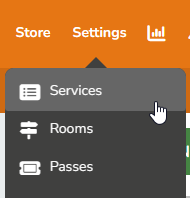
- At the top of any Pike13 page, select Settings then click Services.
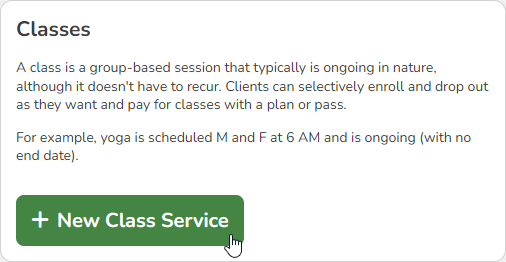
- Select + New Service on the right hand side, then click + New Class Service.
- Enter the following information:
- Name of service
- Class length
- Single Visit Price
- Applicable taxes
- Revenue category
- Who can buy a single visit
- Plans and passes that can be used to pay for participation in the class
- Service category
- Select Finish.
- On the Class Times tab:
- Add class times to the schedule
- Click on the Details tab to make changes to the initial setup:
- Class name and color used on the calendar
- Class length
- Capacity (defaults to 20)
- Waitlist settings
- Single visit price
- Applicable passes and plans
- Service category
- Applicable rooms
- Select Registration to set:
- Who can enroll online - clients, members or staff only
- Enrollment window for registering online
- Enrollment requirements
- Plan, Pass or payment method on file if applicable
- If staff can bulk enroll clients
- If clients can bulk enroll themselves in recurring classes or only one at a time
- Allowing clients to enroll in recurring appointments can allow them to enroll in more service events than they have visits on passes or plans to cover all of their visits.
- Special instructions included in the confirmation email
- How many hours before the appointment starts that a reminder email will be sent
- Whether to send a notification when a single visit pass is about to expire
- Select Cancellation to set:
- A deadline when clients can cancel online for free
- Whether clients should pay a fee and/or have a visit deducted if cancelling within set deadline
- Edit the default cancellation policy shown to clients
- Configure make-up passes if applicable
- Cancellation of enrollment via Client or Staff only
- Select Website Settings to:
- Edit visibility of this service to Visitors, Clients, Members or Staff only
- Add a service summary or full description
- Show the price on your Pike13 site
- Show the assigned instructor's name
- Show remaining spaces for enrollment
- Show the assigned Room name
- Select Pay Rates to:
- Add pay rates for staff when they successfully instruct a class.
- Note: Pay Rates and Payroll are available to Advanced and Premium Pike13 subscriptions.
Duplicate an Existing Class Service
If you need to create a new Class that is similar to an existing one, you can duplicate one instead of creating it from scratch. Once the new Class has been created, you can update its settings to meet your needs.
- At the top of any Pike13 page, select Settings then click Services.
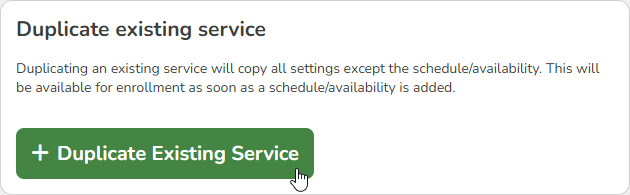
- Select + New Service on the right hand side, then click + Duplicate Existing Service.
- Select the existing class you wish to duplicate and enter a Name for the new service.
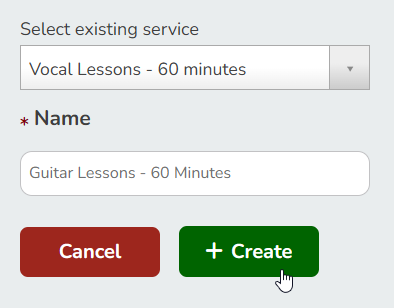
- Click + Create.
- Add class times to the schedule.
- Make any other adjustments as necessary.