
Owners and Managers can submit assets and select colors for their branded app in Advanced Settings.
Who can use this feature?
- Pike13 Plans: ✅Premium, ❌Advanced, ❌Essential
- User Roles: ✅Primary Owner, ✅Owner, ✅Manager, ❌Staff, ❌Limited Staff
Update Branded App Assets
- Login to your Pike13 website.
- Click on Settings.
- Choose Advanced Settings.
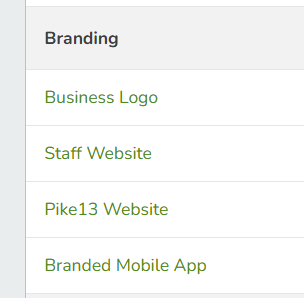
- From the menu under Branding, select Branded Mobile App.
- Click on Assets and Information to update
- Marketing site URL
- Developer Account information
- App Store Category
- App Store Key words
- App Descriptions
- GooglePlay Store Graphic
- Short and long descriptions
7. After adding your information click Submit
Update Branded App Colors
- Login to your Pike13 website.
- Click on Settings.
- Choose Advanced Settings.
- From the menu under Branding, select Branded Mobile App.
- Choose Theme Editor
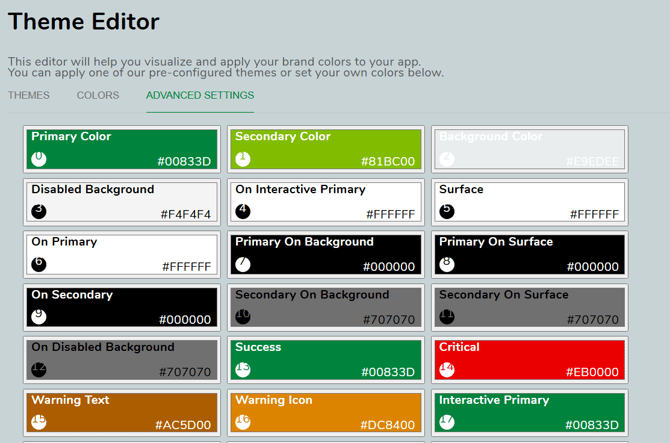
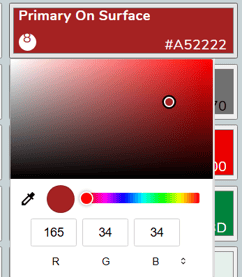
- Click on the color you wish to update by selecting a color or enter the hexcode.
WARNING
If you do not see the option Branded Mobile App, please reach out to the support team at help@pike13.com and they can enable that for your business.